• Managed WordPress Hosting vs Shared Hosting: When Is It Time to Upgrade?

    Managed WordPress Hosting vs Shared Hosting: When Is It Time to Upgrade?

    When you first launch a website, shared hosting often feels like the obvious choice. It is affordable, simple to understand, and available almost everywhere. For a new blog, a small brochure website, or an early-stage business site with limited traffic, shared hosting can be a perfectly reasonable starting point.

    But websites rarely stay the same.

    Over time, you add more pages, images, plugins, forms, analytics tools, SEO features, security plugins, marketing scripts, and maybe even WooCommerce. Your website becomes more important to your business. You begin relying on it for leads, sales, bookings, inquiries, reputation, and search visibility. At that stage, the hosting environment that felt “good enough” in the beginning may start becoming the very thing that holds your site back.

    The challenge is that hosting problems are not always obvious. A slow website may look like a design problem. A broken checkout may look like a plugin issue. Random downtime may feel like “just one of those things.” But behind many WordPress issues, there is often a hosting layer that is too weak, too crowded, or too unmanaged for what the site now needs.

    That is where the question becomes important: should you continue on shared hosting, or is it time to move to managed WordPress hosting now?

    This guide breaks down the real differences and gives you practical signs to watch for, so you can upgrade at the right time — before poor performance, downtime, or security issues begin costing you money.

    What shared hosting really means

    Shared hosting means your website is placed on a server along with many other websites. All those websites share the same pool of server resources, including CPU, memory, disk usage, and server processes.

    This model is what makes shared hosting inexpensive. The hosting provider spreads the cost of one server across many customers. Since most small websites use very little power, this works well at the lower end of the market.

    For many beginners, shared hosting is a useful entry point. It lets you get online quickly without needing to understand server management. You usually get a control panel, email accounts, one-click WordPress installation, and basic support. For a small static website or personal blog, that may be enough.

    But the biggest limitation of shared hosting is that you do not truly control the environment. Your site’s performance depends not only on your own website, but also on how the server is managed and how many other websites are competing for the same resources. If another website on the server consumes too much power, your site can feel the effect. If the host applies strict resource limits, your site may slow down or hit errors when traffic increases.

    So shared hosting is not “bad.” It is simply designed for a different stage of website growth.

    What managed WordPress hosting means

    Managed WordPress hosting is hosting designed specifically for WordPress websites, with performance, security, backups, updates, and technical care included as part of the service.

    Instead of simply giving you server space and leaving the rest to you, managed hosting gives your WordPress site a more optimized environment. A good managed WordPress hosting setup usually includes server-level caching, modern PHP versions, better resource allocation, CDN integration, malware scanning, regular backups, uptime monitoring, and WordPress-aware support.

    The major difference is not just technical. It is operational.

    With shared hosting, you are often responsible for figuring out most WordPress problems yourself. With managed hosting, the provider takes on more responsibility for keeping the site stable, fast, secure, and updated. This matters because most business owners do not want to spend their time troubleshooting cache issues, PHP errors, plugin conflicts, backup failures, or malware warnings.

    Managed hosting becomes especially valuable when your website is no longer just “online,” but actively supporting your business.

    Shared hosting vs managed WordPress hosting: the real difference

    At a surface level, both options host your WordPress website. But in day-to-day usage, the experience can be very different.

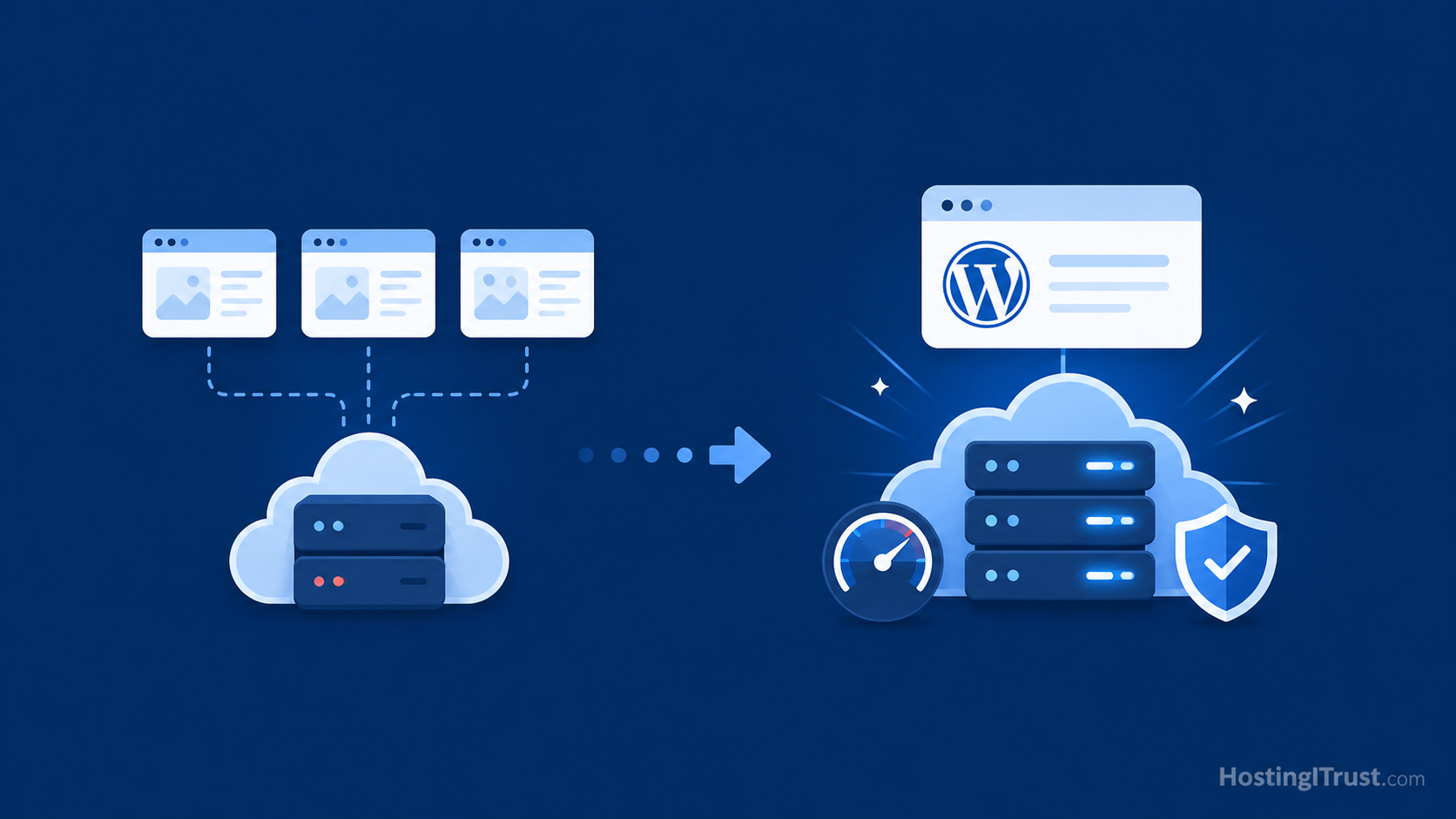
    Shared Hosting Vs Managed WordPress Hosting comparison-table.

    Shared hosting is built around affordability. Managed WordPress hosting is built around reliability, performance, and care. Shared hosting gives you a place to install your website. Managed hosting gives you an environment designed to keep that website working properly.

    Performance is one of the first differences you notice. On shared hosting, your site may feel fast one day and slow the next. That inconsistency often comes from shared server load, limited caching, and resource throttling. Managed hosting usually provides a more predictable experience because the server stack is tuned for WordPress and the resources are better controlled.

    WordPress Security is another big difference. On shared hosting, you may be expected to install your own security plugin, manage updates, and deal with malware if something goes wrong. Managed hosting typically includes proactive security measures, monitoring, firewall rules, and support for cleanup or recovery.

    Backups and restores also differ. Many shared hosts advertise backups, but the restore process may be limited, slow, or paid. Managed hosting should provide more reliable backup routines, off-site storage, and easier restoration.

    The final difference is support. Shared hosting support is often general-purpose. They may help with server access, DNS, or control panel issues, but they may not deeply investigate WordPress-specific problems. Managed WordPress support is usually more familiar with themes, plugins, caching, database issues, and update workflows.

    When shared hosting is still enough

    Before we talk about upgrading, it is important to be fair. Not every site needs managed hosting from day one.

    Shared hosting can still be enough if your website is simple, low-traffic, and not mission-critical. If you have a small brochure site with a few pages, minimal plugins, and no active lead generation campaigns, you may not need to upgrade immediately. If you are experimenting with a new project or building a hobby blog, shared hosting may be perfectly adequate.

    It also works if you are comfortable handling your own maintenance, though the WordPress maintenance checklist is a quite long one. Some website owners enjoy managing updates, testing plugins, checking backups, and troubleshooting small issues. If that is you, and your site is not under pressure, shared hosting may continue to serve you for a while.

    The problem usually begins when the website becomes more important than the hosting environment can support.

    When it is time to upgrade: the real signs your site has outgrown shared hosting

    The biggest mistake is not starting on shared hosting. The biggest mistake is staying on it long after your website has outgrown it.

    Here are the signs to watch for.

    1. Your site feels slow even after basic optimization

    Most WordPress site owners first try to fix speed problems with plugins. They install a caching plugin, compress a few images, remove one or two unused plugins, and maybe run the site through PageSpeed Insights. Sometimes that helps. But if your site is still slow after the obvious improvements, your hosting may be the bottleneck.

    Shared hosting often struggles with Time to First Byte, database response time, and server processing during traffic spikes. This means your visitor may wait too long before the page even begins loading. No amount of image compression can fully compensate for a slow server response.

    A strong sign that hosting is the issue is inconsistency. If your site loads quickly sometimes but feels painfully slow at other times, especially during business hours or traffic peaks, the server may be overloaded. Shared hosting environments can behave this way because many websites are competing for resources.

    Managed WordPress hosting improves this by using a stack built for WordPress performance. Server-level caching, object caching, optimized PHP, and better resource allocation can dramatically improve the stability of page loads. Instead of relying only on plugin-level fixes, the hosting layer itself works to make the site faster.

    If speed has become a recurring frustration, and you have already done the basics, it is probably time to look beyond plugins.

    2. Your traffic is growing — or you are actively trying to grow it

    Shared hosting works best when traffic is low and predictable. But if your content marketing, SEO, social media, or paid ads are beginning to work, your hosting needs to keep up.

    A site that gets a few hundred visits per month has very different requirements from a site getting several thousand, tens of thousands, or sudden traffic spikes from campaigns. The more traffic you receive, the more important caching, server stability, and database performance become.

    This is especially important if you are investing money to bring visitors to your site. If you run ads and send traffic to a slow page, you are wasting part of that ad spend. If your site slows down just when a campaign performs well, the hosting limitation directly affects revenue.

    Growing traffic is a positive sign. But it also changes the role of hosting. Hosting is no longer just a technical expense; it becomes part of your conversion infrastructure. If you are serious about growth, your hosting should support that growth instead of resisting it.

    A good rule of thumb is this: when your website traffic becomes valuable, your hosting environment should become more reliable.

    3. You run WooCommerce, memberships, bookings, or other dynamic features

    A simple WordPress site can often be cached heavily. But dynamic websites are more demanding.

    WooCommerce stores, membership sites, booking systems, learning platforms, directories, and custom dashboards all create more server work. They depend on database queries, user sessions, carts, account pages, payment integrations, and real-time actions. These parts cannot always be cached in the same way as a normal blog post.

    On shared hosting, dynamic features often expose weaknesses quickly. The cart may feel slow. Checkout may stall. Logged-in users may experience delays. Admin pages may become sluggish. Product filters may take too long. Orders or form submissions may fail during resource spikes.

    This is where managed WordPress hosting becomes much more valuable. A managed setup can use object caching, smarter cache exclusions, better PHP workers, database tuning, and monitoring to keep dynamic parts of the site stable.

    If your site processes payments, bookings, memberships, or important lead forms, reliability matters more than the lowest monthly price. A broken checkout or missed lead can cost more than months of hosting savings.

    4. Updates make you nervous because there is no safe workflow

    If you hesitate before clicking “update,” that is understandable. WordPress updates can occasionally break things, especially when a site uses many plugins or an older theme.

    But fear of updates is often a sign that your hosting setup lacks a proper safety net.

    A professional update workflow should include backups, staging, testing, and rollback options. You should be able to test updates before applying them to the live site. You should know that if something goes wrong, the site can be restored quickly.

    On many shared hosting plans, staging is either missing, limited, or not part of the normal workflow. Backups may exist, but restoring them can be inconvenient. As a result, website owners either update directly on the live site or avoid updates for too long. Both options carry risk.

    Managed WordPress hosting changes this experience. Updates can be handled more safely, backups are easier to restore, and staging gives you a place to test before going live. This is not just convenience. It is an important security and stability measure.

    If your current hosting makes maintenance feel risky, that is a strong sign you need a more managed environment.

    5. You are seeing random errors, downtime, or resource limit warnings

    Random errors are one of the clearest signs that your hosting environment is under strain.

    You may see 500 errors, database connection errors, timeout messages, blank pages, failed form submissions, or warnings that resource limits were reached. Sometimes these problems disappear when you refresh the page, which makes them harder to diagnose. But intermittent problems are still problems.

    On shared hosting, these issues can happen when your site hits CPU, memory, process, or disk I/O limits. Even if your site is not “huge,” a heavy plugin, backup process, traffic burst, or bot activity can temporarily push it over the limit.

    The danger is that random errors damage trust. A visitor who sees an error page may not come back. A lead form that silently fails may cost you an inquiry. A checkout issue may lose a sale. Even if the problem lasts only a few minutes, the damage may already be done.

    Managed hosting helps by giving your site a more stable environment, better monitoring, and faster diagnosis. Instead of guessing what happened, you can often see the cause and fix it before it becomes a repeated pattern.

    If errors are becoming normal, your hosting is no longer supporting your website properly.

    6. Your site is now business-critical

    This is the most important sign.

    A website becomes business-critical when it plays a real role in generating leads, sales, trust, or customer communication. It may not be a large website. It may not have massive traffic. But if it supports your business, it deserves reliable infrastructure.

    For a business-critical site, downtime is not just a technical issue. Slow speed is not just a user experience issue. Security is not just a plugin setting. All of these affect revenue, reputation, and customer confidence.

    If your website is the place where people discover you, contact you, book with you, buy from you, or judge your credibility, hosting should not be treated like a disposable commodity. Shared hosting may still work, but it is often not the safest long-term fit.

    At this stage, managed hosting is less about “premium hosting” and more about reducing business risk. You are paying for stability, support, performance, backups, security, and peace of mind.

    7. Your admin dashboard is painfully slow

    Site owners often focus only on the visitor-facing website, but the WordPress admin area also tells a story.

    If your dashboard takes a long time to load, if plugin pages time out, if saving posts feels slow, or if WooCommerce reports take forever, the server may be struggling with backend processing. This is especially common on shared hosting because admin actions are dynamic and cannot always be cached like public pages.

    A slow dashboard wastes your team’s time every day. It makes publishing slower, updates more frustrating, and troubleshooting harder. Over weeks and months, that lost time adds up.

    Managed hosting can improve admin performance through better PHP resources, object caching, database tuning, and a more stable stack. If your team works inside WordPress regularly, admin speed is not a luxury. It is part of operational efficiency.

    8. You are spending more time managing hosting than growing the site

    There is a point where cheap hosting becomes expensive because of the time it consumes.

    If you or your team are constantly clearing caches, contacting support, checking backups, fighting malware warnings, troubleshooting plugin conflicts, or wondering whether the site is down again, the real cost is no longer the hosting invoice. It is your time and attention.

    Business owners often underestimate this. They compare only the monthly price of shared hosting vs managed hosting. But they do not account for lost hours, stress, missed leads, developer emergency fees, or reputation damage.

    Managed hosting is valuable because it removes repetitive technical burden. It gives you a system, not just server space. For many growing businesses, that is the point where the upgrade begins to make financial sense.

    The hidden cost of staying on shared hosting too long

    Shared hosting saves money at the beginning. But if your site has outgrown it, the savings can become misleading.

    A slow site may reduce conversions. Downtime may interrupt campaigns. Security issues may require emergency cleanup. Poor backups may turn a small problem into a major recovery effort. Weak support may leave you waiting when the site is actively losing leads.

    These hidden costs of shared hosting are not always visible in your hosting invoice, but they are real.

    In many cases, businesses delay upgrading until something breaks badly. But the smarter move is to upgrade when the signals appear — before the damage becomes obvious.

    A simple upgrade decision framework

    If you are unsure whether to move from shared hosting to managed WordPress hosting, ask yourself these questions:

    • Does the website generate leads, sales, bookings, or customer trust?
    • Would downtime or slow speed cost us money or reputation?
    • Are we investing in SEO, ads, or content marketing?
    • Do we rely on WooCommerce, forms, memberships, or dynamic features?
    • Are updates, backups, and security becoming stressful?
    • Are we spending too much time dealing with technical issues?

    If you answered yes to several of these, managed hosting is likely not overkill. It is probably the natural next step.

    How HostingITrust approaches managed WordPress hosting

    At HostingITrust, we focus on keeping WordPress sites fast, secure, and stable over time. That means managed hosting is not just about where your site is hosted. It is about how carefully the environment is maintained.

    Our approach includes performance optimization, smart caching, regular updates, backups, security monitoring, and WordPress-aware support. The goal is to reduce the technical uncertainty that often comes with unmanaged or low-cost hosting.

    For business owners, this means fewer surprises. Your site has a stronger foundation, better protection, and a team looking after the details that are easy to ignore until something goes wrong.

    Conclusion: upgrade before your hosting becomes the bottleneck

    Shared hosting is a good starting point. It helps new websites get online affordably and quickly. But as your WordPress site grows, the hosting that once felt practical can become limiting.

    The right time to upgrade is not when your site completely breaks. The right time is when you start seeing the signs: slow speed despite optimization, growing traffic, dynamic features, risky updates, random errors, slow admin performance, or increasing business dependence on the website.

    Managed WordPress hosting gives your site a stronger foundation. It helps improve performance, reduce risk, simplify maintenance & care, and support growth.

    If your website is now important to your business, it may be time to stop asking, “What is the cheapest way to host this?” and start asking, “What environment does this website need to perform reliably?”

    That question usually leads to a better hosting decision.

    Related Posts:

    Can Web Hosting Affect SEO? Speed, Uptime, Security and Crawling Explained →
  • Eco-Friendly Hosting: How Managed WordPress Hosting Can Be Green Too

    Eco-Friendly Hosting: How Managed WordPress Hosting Can Be Green Too

    When people hear the phrase “green hosting,” they usually imagine a hosting company talking about renewable energy, carbon offsets, or environmentally responsible data centers. Those things do matter, and they are certainly part of the conversation. But they are not the whole story. For WordPress site owners, there is another side to eco-friendly hosting that is just as important, and that is efficiency.

    Eco-friendly hosting is about more than a green badge

    A website uses energy every time someone visits it. The server works to process requests. Images and scripts travel across networks. Databases respond to queries. Browsers render pages. If a website is slow, bloated, poorly optimized, or badly maintained, it uses more resources than necessary. That means more compute, more transfer, and ultimately more energy consumed simply to deliver the same page.

    That is why managed WordPress hosting can be green too. It may not always market itself with the loudest sustainability slogans, but when it is designed properly, it reduces waste at every step. A fast, well-maintained, intelligently cached WordPress site can be far more resource efficient than a cluttered site on a cheap, unmanaged setup. In many cases, good performance and greener hosting go hand in hand.

    What makes a website “greener” in practical terms?

    It helps to think of a website as a system that consumes resources in different ways. There is the energy used by the server itself. There is the storage needed for files, databases, and backups. There is the network activity required to move data from the server or CDN to the visitor. And there is the operational overhead created by bad practices, such as repeated crashes, bloated backups, malware cleanups, unnecessary plugin activity, or large amounts of wasted traffic.

    So when we talk about eco-friendly hosting, we are really talking about reducing unnecessary resource use while still delivering a reliable website experience. Part of that comes from the infrastructure a hosting provider chooses. If a provider uses energy-efficient data centers or partners with facilities that operate on cleaner power sources, that is a positive step. But another equally important part comes from how efficiently the website itself is built and managed.

    This is where managed hosting becomes highly relevant. A good managed hosting setup is usually more efficient because it is deliberately tuned to reduce waste. It uses better caching, cleaner software stacks, updated PHP versions, content delivery networks, and performance monitoring. All of this helps the site do the same work with fewer resources.

    Why WordPress sites can become surprisingly wasteful

    WordPress is powerful because it is flexible. It can run a simple blog, a business website, a membership platform, or a full WooCommerce store. But that flexibility also means it can become heavy if it is not managed properly.

    Many WordPress sites accumulate plugins over time. A site that began with five plugins may end up with twenty-five. Some of those plugins overlap with each other. Some load extra CSS and JavaScript across every page, even when the feature is not being used. Some create unnecessary database queries. Some schedule background tasks that run more often than they should. Add large images, page builder bloat, third-party scripts, and unnecessary tracking tools, and the site begins using far more processing power and bandwidth than it really needs.

    The result is not only a slower website. It is also a more wasteful one. Every unnecessary query, every oversized image, every unneeded script adds to the work being done. Multiply that by every visitor, every day, and the difference becomes meaningful.

    This is why eco-friendly hosting is not just about where the server is powered from. It is also about whether your WordPress installation is lean, efficient, and well maintained.

    How managed WordPress hosting can reduce waste

    One of the strongest arguments in favour of managed hosting is that it usually improves the efficiency of your site without you needing to think about every technical detail yourself. A good managed setup quietly reduces waste behind the scenes.

    Caching is one of the clearest examples. Without caching, WordPress may build the same page dynamically again and again for each new visitor. That means PHP execution, database queries, and extra server work each time. With page caching in place, the server can often serve a much lighter, pre-generated version of the page instead. That reduces processing load dramatically. Browser caching adds another layer of efficiency by letting repeat visitors reuse already downloaded assets instead of fetching them again. A CDN improves this further by serving static files from locations closer to the user, reducing the strain on the origin server and improving delivery efficiency.

    Managed hosting also tends to rely on better software environments. Newer PHP versions are not only more secure but also significantly more efficient. Object caching through tools like Redis can reduce repeated database work. Proper compression with Brotli or Gzip means smaller files travel across the network. A tuned server stack can handle more traffic with less waste than an outdated, generic shared environment.

    In other words, managed hosting becomes greener not because it sounds better in a slogan, but because it eliminates unnecessary work.

    Performance and sustainability are more closely linked than most people think

    Many people assume performance and sustainability are separate goals. In reality, the same things that make a site faster often make it more environmentally efficient too.

    When your website loads quickly, it is usually because fewer resources are being wasted. Your images are lighter. Your scripts are fewer. Your server is responding efficiently. Your cache is working well. Your content is being delivered intelligently. All of that means less energy is being spent per visit.

    A poorly optimized site does the opposite. It makes the server work harder, it transfers more data than needed, and it often frustrates users into abandoning the visit. That means energy has been consumed without producing much value. If a user lands on a slow page, waits, gives up, and leaves, the system has still spent resources to serve that visit. It just did not achieve anything useful from a business or user perspective.

    That is why improving site speed is not only good for SEO & rankings, conversions, and user experience. It can also be part of a greener digital strategy.

    The importance of website weight

    One of the simplest and most practical ways to make a WordPress site more eco-friendly is to reduce its overall page weight. Many modern websites are heavier than they need to be. Large hero images, autoplay videos, oversized backgrounds, multiple font files, animation libraries, and third-party embeds all contribute to a heavier page.

    Images are often the biggest offender. A homepage banner image that could have been compressed to 150 or 200 KB is often uploaded at several megabytes. Product galleries may contain far larger files than necessary. Embedded videos may load full players before the visitor even clicks play. These things slow the site down and create unnecessary data transfer.

    A greener approach does not mean making the site ugly or stripped down. It simply means being more intentional. Use modern image formats such as WebP or AVIF where appropriate. Serve responsive image sizes instead of sending a desktop-sized file to a mobile device. Lazy-load below-the-fold media. Keep your font choices controlled. Delay the loading of non-essential scripts until they are actually needed.

    These decisions reduce bandwidth and improve speed at the same time. That is the kind of sustainability win that benefits both the planet and the website owner.

    Why updates and maintenance also matter

    Eco-friendly hosting is not only about what happens during a page load. It is also about what happens over time. A neglected website is almost always a less efficient one.

    Old plugins may run inefficient code. Outdated PHP versions may be slower. Unused plugins may still add database entries, scheduled tasks, and attack surface. Malware infections can create all kinds of hidden waste, from spam page generation to malicious scripts running in the background. Sites that are frequently breaking or being repaired also generate additional server activity, repeated scans, repeated crawls, and repeated human intervention.

    This is one of the less obvious reasons managed hosting can be greener. Regular maintenance keeps the site running cleanly. Updates improve efficiency as well as security. Databases are kept tidier. Broken processes are caught earlier. Backups are handled more systematically. The site stays closer to its intended state rather than drifting into a bloated, fragile setup that consumes more resources over time.

    So while “green hosting” is often marketed as a data center issue, it is also a maintenance issue. A well-maintained site is generally a more efficient site.

    WooCommerce and eco-friendly hosting

    WooCommerce stores deserve special attention because they are naturally more demanding than brochure websites. Product pages, customer sessions, carts, checkout logic, database queries, filters, coupon rules, and payment integrations all create more work for the server. That does not mean WooCommerce cannot be efficient. It simply means it benefits even more from a properly managed environment.

    A WooCommerce store becomes greener when it is optimized to avoid waste. Product images should be compressed and sized properly. Object caching should reduce repeated query load. Cart, checkout, and account pages should be handled carefully so performance is maintained without breaking dynamic behaviour. Unnecessary marketing scripts should be kept under control. The plugin stack should remain disciplined.

    A store like this is not only faster and more conversion-friendly. It is also using its server resources more intelligently. In that sense, efficient WooCommerce hosting is a sustainability measure as much as it is a business one.

    How to evaluate “green hosting” claims more realistically

    It is easy for any hosting company to use words like sustainable, green, or eco-friendly. The harder question is whether those claims are supported by meaningful practices.

    A thoughtful buyer should look beyond simple labels. If a provider talks about renewable energy or sustainability, that is good, but it helps to ask what else they are doing. Do they also operate an efficient stack? Do they support caching, CDN usage, and image optimization? Do they run modern PHP versions? Do they help clients keep websites lean and well maintained? Do they have a credible operational setup, or are they just relying on offsets and branding?

    A host that combines reasonably responsible infrastructure choices with strong performance engineering is far more convincing than one that talks about green values while serving slow, wasteful websites.

    What site owners can do right now

    Even if you are not in a position to redesign your website or switch hosts immediately, there are still useful steps you can take to make your WordPress site more efficient.

    Start by reviewing the basics. Look at your image sizes. Remove plugins you no longer use. Reduce unnecessary third-party scripts. Make sure your caching is active and working correctly. Update your site regularly so it benefits from performance and security improvements. If you have a large database, clean out revisions, expired transients, spam comments, and unused metadata. If your site is heavily trafficked, consider a CDN if you are not already using one.

    None of these changes is dramatic on its own. But together they can significantly reduce the amount of work your website does for every visitor.

    How HostingITrust approaches greener managed hosting

    At HostingITrust, we see eco-friendly hosting as something practical rather than promotional. A greener WordPress setup begins with efficiency. That means using modern infrastructure, reducing waste through caching, serving assets intelligently, keeping software updated, and maintaining websites so they stay lean and stable.

    Our approach focuses on the same things that improve user experience and business performance: faster response times, cleaner page delivery, reliable backups, controlled plugin usage, security hardening, and ongoing maintenance. These choices help websites load faster, behave more predictably, and use hosting resources more intelligently.

    That may not always sound as flashy as sustainability marketing, but in real terms, it is one of the most useful ways managed hosting can be green. A well-run WordPress site is simply less wasteful than a neglected one.

    The greener web is usually the better web

    The good news is that sustainable web practices do not usually ask you to sacrifice performance or reliability. In fact, they usually reward you with better results. A lighter, faster, more stable website tends to rank better, convert better, and cost less to maintain. It is easier on your visitors, easier on your infrastructure, and easier on your business.

    That is why eco-friendly hosting should not be seen as a niche concern. It is really part of building better websites. When you reduce waste, improve efficiency, and choose a managed environment that keeps your WordPress site healthy, you are doing something good on multiple levels at once.

    So yes, managed WordPress hosting can absolutely be green too. Not only because of the energy choices behind the scenes, but because it encourages the kind of efficient, well-maintained web presence that uses less to achieve more.

    Conclusion

    The greenest website is not necessarily the one with the loudest environmental slogan. More often, it is the one that is thoughtfully built, properly maintained, and efficiently hosted. That is where managed WordPress hosting has a real role to play.

    When your site uses fewer resources to serve the same content, when it avoids waste through caching and better optimization, and when it stays healthy through regular maintenance, it becomes both faster and more environmentally responsible. That is a far more useful definition of eco-friendly hosting than marketing language alone.

    If your goal is to run a WordPress site that is fast, secure, reliable, and more resource efficient, managed hosting is one of the smartest ways to move in that direction.

  • Using AI as The Primary Support Tool in the Hosting Industry

    Using AI as The Primary Support Tool in the Hosting Industry

    I run a small web design agency and provide our services to clients across many countries. So we do need reliable hosting to host our clients’ websites.

    In our several years of doing business, we have had the opportunity to work with many hosting providers from across the globe. One of the primary considerations for us in deciding on a hosting company has been the level of support they provide to customers.

    Most companies advertise themselves to be available 24×7, but for us, the most important thing has been how readily you can reach a live support personnel in that company. And of course, the amount of help they offer when you actually need it the most.

    I remember more than a decade back, we were hosting with Softlayer, now IBM Cloud, and one fine day, all our sites went down. We reached out to them through a support ticket, and it took several hours for a reply from them. And mostly it said that we were supposed to take care of our own server and they cannot help. Their intervention or support would cost us several hundred dollars per hour. Which was too expensive for us at that time.

    We learnt a big lesson that day, which also changed the course of our business. We stopped providing hosting to resellers and in turn only provided hosting to our direct design customers from that day onwards.

    Of course, we switched our hosting providers. It was obvious that they were too big for us and didn’t care much for small companies like us.

    Switching Hosting Providers Is A Mammoth Task

    We don’t want to switch hosting providers often because it involves too much effort and coordination. First, you need to scout for the best hosting companies out there. Make a list, speak to them, and see which company fits the bill better.

    Then purchase a package from them, and get your branding done wherever possible. And carefully shift each of the hosting accounts one by one. And ensuring that there is no downtime in the process. Once done, you need to double-check that each site shifted properly without errors.

    It takes too much energy and effort, and you can understand that if not absolutely necessary to move, we would rather stay with the same host.

    Human Customer Support is the Main Criteria for Choosing a Hosting Provider for Us

    Over the years, the main criteria for choosing and sticking to a host have been the quality of support they provide. Whether you get to speak to a human, on the phone or through chat, is of paramount importance. Someone who can understand and have empathy. Who will have the wisdom to handle the task in an appropriate manner. Someone who will understand the gravity of the situation.

    We have also learnt well to buy managed servers, rather than unmanaged ones. So if anything goes wrong, the hosting company is bound to solve it for us. Though the initial cost of such a solution is higher on a day-to-day basis. But the peace of mind and the assurances it offers is worth the price you pay.

    Currently, we are using ScalaHosting as our service provider. They are usually good. Not sure how big of a company they are, but one thing that I like about them is the 24/7 human support that they provide. I usually interact with them through chat. And every time I need support, I get to talk to someone there within a couple of seconds, which is huge for me. And especially since the amount I pay is much less than what other similar companies are charging.

    One of the US-based companies that we work with hosts all its sites with WP engine, so I also have a account which I use to interact with their support team. I must say they also have an impressive support team, ready to sort out all your issues. However, they are much, much more expensive.

    Many Hosting Companies Are Moving Towards AI-Based Customer Support

    Recently, I had a bad experience with Scalahosting. One of our primary sites had gotten infected with Malware and they just sent me an email saying, their terms have been violated and therefore they blocked its public access.

    And since I didn’t see the email, my site was down for almost 2 days. It was very disappointing. Now, this is the kind of attitude I would have expected of a company that didn’t care. Or a cheap company that only hosts insignificant or nonimportant websites.

    I was not happy, so I decided I would move. And the cycle started all over again for a good host search. I soon realized that most of the popular hosting companies had fully automated their Chat Support with AI.

    One popular company that particularly caught my attention was Hostinger. Their Support chatbot is called Kodee. And they have a button for the chat labelled, “Ask Kodee”. I interacted with Kodee Chatbot, and surprisingly it was good. Much more faster than a human can ever be. And chat did not seem robotic, and seemed quite human-like.

    Giving me accurate information regarding plans and everything. I asked it if a human was available at all. It said they were and I could talk to them once I purchased. It sounded convincing enough and I purchased a plan from them.

    Immediately, I got an email with all the login details for setting up sites etc. I wanted to setup my own nameservers and wanted to know what branding options are there. The panel looked confusing, and there were so many questions, as anyone would have during the initial phases of onboarding. Once this phase passes, then you hardly ever need to contact support. So support during this phase is critical.

    So I initiate a chat, and there is Kodee again. I told her I wanted to talk to a human. But you just cannnot bypass her. She will be answering all the questions. Now, we were going round and round. I still tried for another 45 minutes trying to make sense of everything.

    At last, I told her that I was looking for a more personalized service. And it seems like I have made a mistake purchasing from them. And that I wanted a refund.

    She told me where I can find the refund button. And the refund button was not there. She then gave me a tutorial on how to initiate a refund. I followed it and still no refund button to be found. The instructions said, if you don’t see a “refund button” that means you are not eligible for a refund.

    I thought I made a big mistake, paying yearly upfront. Then I asked her again to connect me to a human. Surprisingly, this time around, she did connect me to a human being. I told him I was looking for the refund link. He pointed me precisely to what I needed. I clicked on the link to initiate the refund process. In a couple of days time, the amount got refunded back to my payment method.

    At least I can give them credit for refunding the amount to me.

    Personalized Service is Becoming Rare & Expensive

    With Hostinger, it was like we need your money but we don’t want to interact with you. The personal human touch was completely missing. I guess, you can eliminate it or automate it to a certain extent. But complete elimination of the human touch is not possible. It is not natural.

    However, I have seen this trend of partial or complete Support automation happening with Hosting companies with very large customer bases.

    Many companies do offer personalized service but it is not cheap.

    So, for the time being, I have decided to hold onto my current cloud hosting service provider, Scalahost, where I still have the opportunity to chat with a human being, when I need to.

    So which companies do you host with? And what do you like about them? Let me know in the comments below.

  • The Ultimate Website Builder List: Find the Perfect Platform for Your Online Presence

    The Ultimate Website Builder List: Find the Perfect Platform for Your Online Presence

    Are you ready to take your online presence to the next level? Whether you’re a small business owner, a passionate blogger, or an entrepreneur looking to showcase your products or services, having a powerful website builder is crucial.

    But with so many options available, finding the perfect platform can often feel overwhelming. That’s where we come in. Introducing the ultimate website builder list, your go-to resource for finding the ideal solution to suit your needs.

    In this comprehensive guide, we’ve curated a handpicked selection of the top website builders, each offering unique features and functionalities. From user-friendly interfaces to customizable templates, advanced SEO tools, and e-commerce capabilities, we’ve done the research so you can save time and make an informed decision.

    So, whether you’re a tech-savvy pro or a complete beginner, join us on this journey as we explore the best website builders on the market, helping you create a stunning online presence that leaves a lasting impression. Let’s get started!

    Factors to consider when choosing a website builder

    When it comes to choosing a website builder, there are several factors to consider. First and foremost, you need to think about your technical skills and experience.

    If you’re a beginner with little to no coding knowledge, you’ll want a website builder that offers a user-friendly interface and drag-and-drop functionality. On the other hand, if you’re an experienced web developer, you may want a platform that allows for more customization and advanced features.

    Another important factor to consider is the purpose of your website. Are you looking to build a simple blog or a complex e-commerce store? Different website builders cater to different needs, so it’s essential to choose one that aligns with your goals. You should also consider the scalability of the platform. Will it be able to grow with your business? Can it handle increased traffic and additional features?

    Lastly, you’ll want to think about your budget. While some website builders offer free plans, they often come with limitations and restrictions. If you’re serious about your online presence, investing in a paid plan may be worth it for the additional features and support. Now that we’ve covered the factors to consider, let’s dive into the top website builders on the market.

    Popular website builders for beginners

    If you’re new to website building, you’ll want a platform that is beginner-friendly and easy to use. Wix is one of the most popular website builders for beginners, thanks to its intuitive drag-and-drop editor and extensive collection of templates. With Wix, you can create a stunning website without any coding knowledge.

    Another great option for beginners is Squarespace. Known for its beautiful designs and user-friendly interface, Squarespace offers a seamless website building experience. Both Wix and Squarespace provide excellent customer support, making them ideal choices for beginners.

    For those looking for a more budget-friendly option, Weebly is a great choice too. With its straightforward interface and affordable pricing plans, Weebly is perfect for small businesses and individuals.

    WordPress.com is another popular website builder for beginners, offering a wide range of customizable templates and themes. With its large community and extensive plugin library, WordPress.com is a versatile option for those looking to build a professional website.

    Advanced website builders for experienced users

    If you have some web development experience and are looking for more advanced features and customization options, you’ll want a website builder that caters to your needs.

    Shopify is an excellent choice for e-commerce websites, offering a robust platform with built-in payment gateways and inventory management tools. With its extensive selection of themes and plugins, Shopify allows for complete control over your online store.

    For those looking for more design flexibility, Webflow is a powerful website builder that combines visual design and code. With Webflow, you can create custom animations and interactions, giving your website a unique and professional look.

    Another advanced website builder is Joomla, which offers a wide range of extensions and templates for more complex websites. With its advanced user management system and multilingual capabilities, Joomla is a popular choice for large organizations and businesses. Though Joomla is more of a Content Management System (CMS) than a drag and drop website builder. It is primarily aimed at developers to configure it for their clients.

    E-commerce website builders for online stores

    For businesses looking to sell products or services online, it’s essential to choose a website builder that specializes in e-commerce.

    In addition to Shopify, which we mentioned earlier, BigCommerce is another excellent option for online stores. With its extensive range of features, including built-in SEO tools and marketing functionalities, BigCommerce makes it easy to create and manage a successful online business.

    If you’re looking for a more budget-friendly option, WooCommerce is a popular choice for businesses using WordPress. With its seamless integration with WordPress, WooCommerce allows you to turn your existing website into a fully functional online store. It offers a wide range of extensions and plugins, making it easy to customize your online store to your specific needs.

    Website builders with SEO features

    Having a website that is search engine optimized is crucial for ranking higher in search engine results and driving organic traffic to your site. Luckily, many website builders offer built-in SEO features to help you optimize your website.

    One such platform is Squarespace, which provides on-page optimization tools and customizable meta tags. With Squarespace, you can easily optimize your website for search engines without any coding knowledge.

    Wix is another website builder that prioritizes SEO. With its built-in SEO wizard and advanced SEO tools, Wix makes it easy to optimize your website for search engines.

    WordPress.com is also known for its SEO capabilities, thanks to its extensive range of SEO plugins. With WordPress.com, you can easily optimize your website’s meta tags, headings, and content to improve your search engine rankings.

    Mobile-friendly website builders

    With more and more people accessing the internet on their mobile devices, having a mobile-friendly website is crucial. Fortunately, many website builders offer responsive templates and mobile optimization features.

    Wix, for example, automatically generates a mobile-friendly version of your website, ensuring that it looks great on any device. Squarespace also prioritizes mobile responsiveness, with all of its templates designed to adapt to different screen sizes.

    Shopify is another website builder that offers mobile optimization features. With its mobile app, you can manage your online store and track your sales on the go. WordPress.com also provides responsive themes, allowing you to create a mobile-friendly website without any coding knowledge.

    Free vs paid website builders

    When it comes to website builders, there are both free and paid options available. While free website builders can be a great starting point, they often come with limitations and restrictions.

    For example, free plans may include ads on your website, have limited storage and bandwidth, and lack advanced features. If you’re serious about your online presence, investing in a paid plan is usually worth it for the additional features and support.

    Paid website builders often offer more customization options, better customer support, and improved performance. They also typically come with a custom domain name, which is essential for building a professional online presence.

    However, if you’re just starting and have a limited budget, free website builders like Wix, Weebly, and WordPress.com can be a good option to get you started.

    Website builder reviews and comparisons

    With so many website builders available, it can be challenging to choose the right one for your needs. That’s where website builder reviews and comparisons come in handy. Reading reviews from real users can give you valuable insights into the pros and cons of different platforms. You can find reviews on popular review sites, forums, and social media groups.

    Comparisons between different website builders can also help you make an informed decision. These comparisons often highlight the features, pricing, and user-friendliness of each platform, allowing you to weigh the pros and cons. It’s essential to consider multiple sources and take into account your specific needs and goals when reading reviews and comparisons.

    Conclusion and final thoughts

    In conclusion, choosing the right website builder is crucial for creating a stunning, sustainable, and long-term online presence. Whether you’re a beginner or an experienced web developer, there is a website builder out there that is perfect for you.

    Consider factors such as your technical skills, website goals, budget, and desired features when making your decision.Remember to take advantage of website builder reviews and comparisons to get a better understanding of the different platforms available. And don’t forget about the importance of mobile responsiveness and SEO when choosing a website builder.

    With the ultimate website builder list as your guide, you’re well on your way to creating a powerful online presence that leaves a lasting impression. So, what are you waiting for? Let’s get started on building the website of your dreams!

  • How Caching Works for WordPress Sites

    How Caching Works for WordPress Sites

    If you run a website, you know how important website speed is. Considering users’ diminishing attention spans, you are always on the lookout for ways to speed up your site. That’s probably why you’re here too. In fact, studies show that if a website takes more than two seconds to load, visitors are more likely to abandon it and go elsewhere. This is where caching comes in. Caching can reduce your website loading time, and as a result, boost your conversions and improve your site’s user experience.

    How is Website Caching Useful?

    Why has caching become so crucial for any website? Every business wants to increase its website traffic to improve engagement and conversions. Website speed is one of the strongest components of a positive user experience. Thus, users are more likely to return to the same website or even refer it to people in their network.

    By storing static or unchanged content on the browser, website caching can reduce the overall load on server resources and improve site loading time on the user’s device. This can help improve your site’s SEO ranking as Google’s search algorithm gives a higher ranking to fast loading websites.

    Google SEO

    Next, we shall see how website caching works in more detail.

    How does Website Caching Work?

    Imagine that you run an online learning WordPress website. When a user visits your website, here’s what happens:

    1. The user opens your website URL on their browser and requests a particular course.
    2. Their browser then transmits this HTTP request to your web server, which then retrieves the relevant website page from its database.
    3. Your web server then compiles and transmits this data in HTML format to the user’s browser.
    4. Finally, the user’s browser processes this HTML file and displays the webpage. 

    Each time the user makes such a request, this process is repeated until they exit your website. As expected, this process is very server-intensive and can overload your server.

    Now, let’s see how caching can make a difference in this process –

    1. As before, the user visits your site and makes an HTTP request for particular course content.
    2. Your cache-enabled web server processes this HTTP request made by the user. First, it checks its stored and cached HTML data for any modifications in the requested web page content since the last request. 
    3. If there are no changes, then your server serves up this static cached content to the browser. This process is much faster and puts a lesser load on the server resources.
    4. The static cached content is displayed on the user’s browser. This process is repeated each time any user requests for the same webpage and if there are no changes or modifications in your webpage content. 

    When you do make any changes in the particular webpage, the existing cache is automatically purged, and the new web page data is now transferred to the user and subsequently stored in the cache memory. Cached data can be stored either on the browser (client-side) or on your web server (server-side), which brings us to the next topic.

    Types of WordPress Cache

    Caching methods used by WordPress sites fall under the following two main categories:

    Browser Caching

    Also known as client-side caching, browser caching is a faster and popular form of caching on WordPress sites. Here, the cached data is stored on the user’s local device or browser. When the user visits any website, the cached copy of the site content is loaded from the user’s browser. 

    This form of caching is faster but can sometimes lead to problems like not being able to see or view updates/modifications from the website. This happens when an existing cache is not automatically purged and needs to be cleared from the browser.

    Server Caching

    Server caching is an alternate form of caching mechanism that is implemented between the user’s browser and the web server that generates cached content for any WordPress site. In this method, the cached content in the form of static HTML files is stored on the web server instead of the visitor’s device.

    Server caching is more suitable for large websites with large volumes of content pieces. Server caching can be implemented efficiently through a Content Delivery Network (CDN). 

    A CDN, caches content in proxy servers located closer to users than the origin servers.  A CDN is able to deliver content quickly because the proxy servers are closer to the user making the request.

    Server caching can also be done by WordPress caching plugins that cache pages, minify  CSS, HTML, and JavaScript, provide GZIP compression, CDN support, and more. 

    So far, we have discussed how website caching is effective, along with its common types. However, there are times when you need to clear your cache. Next, let’s discuss why you need to clear cached data regularly and how you can do that easily.

    Why Clear Your WordPress Cache Regularly

    While WordPress caching is a great way to enhance your website’s user experience, it can, sometimes, become a hurdle while delivering new content to your visitors.  This happens when the cache system does not detect changes.

    Clear WordPress Cache

    Here are some scenarios when your cache needs to be cleared so that outdated content is not delivered to your visitors:

    1. WordPress Plugin/Theme Updates

    WordPress plugins/themes often require the cache to be cleared after a major update. This is to ensure that the changes in your site functionality and design are reflected in your live site and displayed during the next HTTP request.

    2. Website Design Changes

    Changing your site design can mean many things – a new page has been added, or a new website theme has been installed, or changes in the contact form.  However, if these changes are not visible on your live site, it means that your caching mechanism has probably failed to detect the change.

    3. New Website Content

    To remain relevant and competitive, every website needs new content such as blogs, white papers, business videos, product offerings, and even new webpages. Search engines like Google favor websites that regularly introduce new content.

    However, a failed caching mechanism can stop this new content from being displayed on the user’s browser. Additionally, Google’s bots are unable to index the newly added pages, particularly when you add content to widget areas.

    These are just some of the reasons why you must periodically clear your browser cache. If you use a server cache, you can contact your current web host to get the job done. This is easier and quicker when you have managed web hosting. 

    There are two ways to clear your WordPress cache. You can do so manually, but that would require technical knowledge and a considerable investment of time and effort. A convenient alternative is using WordPress caching plugins like WP Rocket or W3 Total Cache that offer easier automated cache clearing methods.

    Some of the features to look out for in a caching plugin include

    • Browser caching, 
    • Cache preloading, 
    • GZIP compression, 
    • Minification of HTML, CSS, and JavaScript files.

    Pro-tip: Whichever method you choose, always remember to take a website backup before clearing your cache. For this, you could pick from backup plugins like BlogVault that automate the entire backup process for you.

    Conclusion

    Caching is an effective way to improve the loading speed of your WordPress site. It helps improve your SEO prospects and also makes the experience your users have on your site a pleasant one.

    But, it’s important to remember that users also need to see fresh and updated content. A failed caching process can be counterproductive by showing outdated content to users. 

    It’s important to clear your website’s cache regularly and make it a part of your regular website maintenance. This is even more critical when you make updates to your site’s functionality, say by installing or updating plugins, or its look-and-feel by updating themes. 

    We’re curious to know if you deploy caching for your site. How has that helped your site? What tools do you recommend? Let us know in the comments below.

    About the Author

    Akshat Choudhary is the Founder and CEO of BlogVault, MalCare and WP Remote – successful WordPress plugins designed for complete website management. He has always prided himself on his ability to teach himself things. Since starting BlogVault, Akshat has transformed his side-project into a profitable venture that is scaling new heights in the Indian startup space. As a member of the WordPress community for almost a decade, Akshat’s core belief when building any product is to ensure the end-user doesn’t need assistance and to assist them in the best possible manner if they do.

  • Top WordPress Blogs to Follow in 2020

    Top WordPress Blogs to Follow in 2020

    WordPress and community are two words that often go hand in hand. The WordPress community (oh, here we go again) is vast and comprises of people from all around the world.

    Within this community are people who run WordPress blogs that are aimed at educating WordPress users with fresh and unique content. Now, I won’t say all blogs are educational as some people enter the WordPress industry due to its popularity and because it gives them many opportunities to earn money. 

    Top WordPress Blogs

    So here goes the list of the top WordPress blogs that you should follow in 2020.

    WP Beginner

    WP Beginner website screenshot

    Well, we all know wpbeginner. One of the first ones to enter the WordPress community with educational content was Syed Balkhi, owner of WP Beginner, who is now an entrepreneur and owns Awesome Motive.

    Millions of WordPress users rely on WP Beginner for solutions to their WordPress problems. The content is easy to understand and every WordPress topic is explained thoroughly, covering every possible angle. 

    Over the years, WP Beginner has not only gained the trust of WordPress users but also of influential personalities in the content marketing niche. The likes of Neil Patel and Chris Bogan endorse the quality of WP Beginner which is a big enough stamp of quality. 

    WPblog

    WPblog is a relatively new entrant in the WordPress industry. Started in 2017, WPblog aims to cut through the noise to provide honest and unique content to WordPress users.

    You will find amazing WordPress tutorials, reviews, comparisons and interviews of popular WordPress personalities on WPblog. 

    What makes WPblog stand out is the fact that it creates content for the newer generation. WordPressers nowadays want to drag and drop elements and build their website without any coding.

    These WordPress users neither have the time nor are they interested in long boring content which is exactly what WPblog doesn’t have. WPblog wants to teach WordPress and not bore its visitors so do expect some amazing stuff from their tutorials. 

    Torquemag

    Torque mag header screenshot

    Torquemag is a WordPress blog powered by WP Engine, a popular WordPress managed hosting provider. It has quickly emerged as one of the most authentic WordPress resources for quality tutorials and reviews. 

    The blog consists of a number of different writers each having their own tone and way of communicating their message. This has created an interesting blend where you will find a number of different types of content including WP Tutorials, thought leaders and much more.

    WP Tavern

    If you’re interested in WordPress news and insights, then WP Tavern is your go-to WordPress blog. It is owned by none other than Matt Mullenweg who treats this blog as his personal project and aims to take it to newer heights.

    Audrey.co, Matt Mullenweg’s own project dedicated to research and development has the sole responsibility to look after the content of WP Tavern. 

    Now that you know this WordPress blog is in safe hands, you must believe that the content quality is off the charts.

    The news and insights that you read on WP Tavern are first hand, genuine and honest information about any update, event and other happenings in the community. 

    WP Lift

    WP Lift is another great WordPress resource that has branded itself as WordPress astronauts who explore the WordPress space to bring you quality and original content. This also makes it fun to read content at WP Lift. 

    WP Lift’s content includes WordPress tutorials, theme reviews and discount coupons that are a great way to attract audiences to your blog. These coupons also provide great value for readers and serve as an incentive for the time they are giving to the blog.

    Codeinwp

    codeinwp website screenshot

    Codeinwp is the master of long-form, detailed, and researched content that provides great value to the readers. These content pieces are also ranked on difficult keywords because they are so well researched that readers are compelled to share them again and again. 

    Apart from a blog, Codeinwp is A hub for WordPress freelancers, bloggers & creators.

    It provides end to end guides for developers, freelancers, and bloggers so that they can create amazing things with WordPress.

    WP Explorer

    WP Explorer is a similar blog to Codeinwp where they publish detailed articles on WordPress topics to provide value to their readers. It offers useful guides on hosting, blogging, SEO, security, monetization and much more. 

    Apart from that, WP Explorer develops themes and plugins for WordPress site owners. Whatever a WordPress user needs, WP Explorer has got it covered.

    Final Words

    The WordPress community is packed with amazing bloggers who are working hard to create unique content so that they can be heard. And at the same time contributing in making the community a better place.

    I have listed such blogs in this article and if you think I missed your favorite one, do let me know in the comments.

    About the Author

    Moeez is ‘The’ blogger in charge of WPblog. He loves to interact and learn about WordPress with people in the WordPress community. Outside his work life, Moeez spends time hanging out with his friends, playing Xbox and watching football on the weekends. You can get in touch with him at moeez[at]wpblog.com.

  • 10 Tips To Make Your WordPress Site More Interactive

    10 Tips To Make Your WordPress Site More Interactive

    This article explores practical ways to make your WordPress website more interactive—so it feels less like a static brochure and more like a place people enjoy using.

    With millions of websites online, it’s easy to blend into the background—just like countless fish in the ocean that most people could never name.

    But you don’t want your site to be another forgettable URL. You want it to stand out, look polished, and leave visitors with a strong first impression.

    That’s not easy—and it shouldn’t be framed as effortless.

    Yes, there are many SEO tactics that can improve visibility and traffic: inbound marketing, local citation building, landing page optimization, competitor link analysis, on-page SEO, and more. However, this article isn’t a full SEO guide. It focuses on one specific piece of the puzzle: how to make your website more interactive—so visitors stay longer, engage more, and are more likely to convert.

    How does adding interactivity benefit your site?

    Adding interactive elements can help your website in more ways than one—especially if your goal is to stand out and avoid getting lost in the crowd.

    When your site is interactive, visitors have a reason to stick around. A quick quiz, a survey, a calculator, a poll, live chat, or a community feature can turn passive readers into active participants. The result: people spend more time engaging with your content instead of clicking away after a few seconds.

    And in a competitive online space, that extra attention matters. The longer visitors stay on your website, the more opportunities you have to guide them toward a meaningful action—buying a product, booking a service, signing up for your newsletter, or sharing your content on social media.

    Interactivity also supports your SEO indirectly. Engaged visitors tend to increase dwell time and lower your bounce rate, both of which signal that your page is useful. Over time, these engagement signals can contribute to stronger search visibility and better rankings.

    How do you make your site more interactive in WordPress?

    If you’re using WordPress, one of the easiest ways to add interactivity is through plugins.

    WordPress has a massive plugin ecosystem, and many great options are available for free. While most plugins offer a paid (Pro) version with extra features, the free version is often more than enough to get started and see real results.

    The best part? Adding interactive features is usually only a few clicks away. Install a plugin, activate it, and customize the settings to match your goals—no complicated setup required.

    Now, let’s dive into 10 practical ways to make your WordPress site more interactive (using plugins), with examples for each.

    1. Polls & Quizzes

    Polls & Quizzes - Ways to make your site more interactive

    Polls and quizzes turn “reading” into “doing.” Instead of scanning your post and leaving, visitors pause, click, think, and respond—exactly the kind of engagement you want if you’re trying to build a memorable site.

    They’re also a powerful way to learn what your audience actually wants. A quick poll can tell you which product feature matters most, what topic they want next, or what kind of content they prefer (tutorials, templates, case studies, etc.).

    Quizzes work especially well for lead generation and segmentation. A simple “Which option fits you best?” quiz can route people to the right service page or product category—without feeling pushy.

    To get the most value, treat your quiz results like content. Create helpful outcomes (not just “You scored 7/10”), link to relevant pages, and give visitors an easy next step.

    Plugins to try (pick 1):

    2. Interactive Forms, Surveys & Calculators

    If you want more inquiries, signups, bookings, or sales, interactive forms and calculators are one of the fastest upgrades you can make. They give visitors something useful right now—an estimate, a recommendation, a quote, a score, or a result.

    Even a basic “Get an estimate” calculator can keep people on the page longer than a standard contact form. It feels like progress: they see inputs, change values, and immediately get feedback.

    This also improves the quality of your leads. Someone who completes a calculator or multi-step form is usually more serious than someone who clicks “Contact” and bounces.

    A simple way to start: add one calculator that matches your business model—pricing estimate, shipping estimate, ROI calculator, savings calculator, or service package selector.

    Plugins to try (pick 1):

    3. Reviews, Feedback & Testimonials

    People trust people. Reviews and testimonials create interaction in two directions: visitors consume social proof, and your customers contribute to it.

    A review section also reduces friction. If a visitor is unsure, a few real reviews can answer objections faster than another paragraph of marketing copy.

    Don’t limit this to product pages. If you offer services, add testimonials near your main call-to-action. If you run a blog, use feedback forms to understand what readers found helpful and what’s missing.

    One practical tip: make leaving feedback as easy as possible. The fewer fields you require, the more submissions you’ll get—and you can always request more details later.

    Plugins to try (pick 1):

    4. Social Sharing & “Click to Tweet”

    Social sharing buttons create quick, low-effort interaction. A visitor doesn’t need to fill a form or buy something to engage—they just click “share,” and your content gets a second life.

    The best shares usually come from “micro-content” inside the post: punchy quotes, stats, mini takeaways, or short frameworks. That’s why “Click to Tweet” boxes work so well—they package a share-worthy line for the reader.

    Don’t overdo it. Too many sharing icons everywhere can feel cluttered. A simple approach is: one floating share bar (desktop), one set at the end of the post (mobile), and 2–4 click-to-tweet quotes inside long articles.

    If you’re writing for SEO, shares aren’t a direct ranking factor—but they can bring more eyeballs, more links, and more repeat visitors over time.

    Plugins to try (pick 1):

    5. Social Feeds & Embedded Social Content

    Twitter Feeds by Ray Social Feeds for Twitter

    A living social feed makes your site feel active. It signals that there’s real human activity around your brand—posts, photos, updates—not just static pages.

    Social feeds can also increase “sticky browsing.” Visitors scroll through a gallery or feed, click into posts, and spend more time on your site without you writing extra blog content every week.

    One smart placement is your homepage or about page: a curated Instagram feed, a Facebook posts widget, or embedded videos. Another is product pages—especially if you have user photos or social proof content you want to highlight.

    Keep it intentional: choose a feed that supports your goal (brand trust, product discovery, community vibe), and don’t load five platforms at once.

    Plugins to try (pick 1):

    6. Gamification & Rewards

    Rewards - ways to make your site interactive

    Gamification works because it gives visitors a reason to return and participate. Instead of “read and leave,” it becomes “earn, unlock, progress, collect.”

    This is especially effective for communities, membership sites, eLearning, and WooCommerce stores. You can reward actions like commenting, completing lessons, daily logins, referrals, or purchases.

    The trick is to keep it simple in version one. Start with one reward loop: for example, “Earn points for comments + redeem points for a discount” or “Earn a badge after 5 helpful replies.”

    Gamification can also support moderation and quality. Reward helpful contributions, not just volume—so you build a better community instead of spammy engagement.

    Plugins to try (pick 1):

    7. User-Generated Content (Front-End Submissions)

    User-generated content (UGC) is one of the most underrated ways to add interactivity because it scales. Instead of you creating 100% of the content, your community can contribute posts, stories, photos, listings, testimonials, or updates.

    Front-end submissions are also friendlier for non-technical users. They don’t need a WordPress login or admin access—they just submit via a form.

    This works beautifully for guest posts, local directories, job boards, community spotlights, photo contests, case study submissions, and “share your story” pages.

    Do it safely: use moderation, spam protection, required fields, and clear guidelines so the content stays high-quality.

    Plugins to try (pick 1):

    8. Community Features: Forums & Q&A

    If your niche benefits from discussion—support, hobbies, learning, SaaS, tech, parenting, fitness—forums and Q&A can turn your site into a destination instead of a one-time read.

    A forum adds ongoing interaction. People return to check replies, answer questions, and follow threads. Over time, those discussions become a content library that helps new visitors too.

    Q&A formats are great when visitors have specific problems. Even if you don’t want a full forum, adding a Q&A section for FAQs, troubleshooting, or community questions can boost engagement heavily.

    Start small: one forum category or one Q&A topic area. Once it gets traction, expand.

    Plugins to try (pick 1):

    9. Live Chat & Messaging

    Live chat gives visitors an instant way to interact—especially when they’re stuck, unsure, or ready to buy but have one last question.

    It can also reduce “silent drop-offs.” Many visitors won’t fill a contact form, but they will ask a quick chat question like: “Do you ship to my city?” “Which plan should I choose?” “Can I book for next week?”

    A good chat setup includes: a friendly welcome message, quick replies for common questions, and an offline mode that turns chats into support tickets or email follow-ups.

    One reminder: chat is only effective if you manage it. If you can’t respond quickly, use a clear offline message and capture the lead instead.

    Plugins to try (pick 1):

    10. Related Posts & Personalized Recommendations

    Related posts are one of the simplest interactive upgrades with a big payoff: they keep readers clicking.

    Instead of finishing an article and bouncing, visitors get a “next best step”—another post that matches their interests. That increases pageviews per session and helps your best content get discovered.

    Recommendations also help your internal linking naturally. If your content has clusters (beginner → intermediate → advanced), related posts can guide users through that learning path.

    A quick win is to add related posts below every blog post, and also consider related posts inside content (mid-article) for longer pieces.

    Plugins to try (pick 1):

    Final Thoughts

    Interactivity isn’t about adding “more stuff.” It’s about giving visitors a reason to click, respond, explore, and return.

    If you want an easy roadmap: pick two engagement features (like quizzes + related posts) and one conversion feature (like a calculator or live chat). Set them up, keep them lightweight, and track what improves time on site, signups, inquiries, or sales.

    One last practical note: plugins are powerful, but they’re also a common source of site risk if they’re outdated or unnecessary as outlined in this TechRadar article —so keep only what you use and update regularly. WordPress plugin vulnerabilities do happen, and staying updated is one of the simplest protections.

  • 5 Essential WordPress Maintenance Tasks To Keep Your Site Safe & Healthy

    5 Essential WordPress Maintenance Tasks To Keep Your Site Safe & Healthy

    Everything needs a certain degree of maintenance to keep it working as intended. And your WordPress site is no exception.

    What your website is not built on WordPress. See here why you should switch to WordPress!

    Your website serves a certain purpose for you. Maybe you use it to publish your thoughts & opinions. Or maybe you use it to conduct your business online.

    Whatever the reason is, it is an important one. And that is why you built your WordPress site in the first place.
    But as with all things it will need you to take certain steps to keep it in top working shape for a long time to come. And so that it can serve its purpose with utmost efficiency without any unwanted interruptions.

    So, what are the essential steps you need to perform at regular intervals to keep your WordPress site happy? Let’s take a look at each of them below.

    1. Regular Backups

    In my opinion, this is one of the most important of the maintenance tasks, and that is why I mentioned it as the first point to consider.

    What is a website backup you may ask? Well, these are the website and database files that are needed to recreate your site as it is at that point in time.

    This is my definition of a backup that I have arrived at after being in the web design business for many years. Of course, if you look it up in a dictionary it may be different.

    But the essence is that the backup would ideally contain the website & database files, when put together would recreate the website. The website would be exactly as it was when the backup was taken.

    Therefore, it is important to take backups regularly.

    With time, a lot gets added to a website. These could be blog posts that you added over time. The iterations and corrections you made to the site. The pages you added to the site etc.

    If you happen to run an e-commerce site, the data is even more important. Because, each day new transactions are happening, and new orders are being placed.

    All the customer data, invoices, billing details, transactions, refunds etc. change each day. And it is important that this data is kept intact.

    Therefore, the backups for such sites need to happen each day.

    The question is not whether to take a backup or not? The question is how often you should take that backup.

    And if you have been neglecting this task then you are at a serious risk of the possibility of losing your website due to any of the unforeseen circumstances like Malware, Viruses, Hacking, Accidental Data Corruption or Deletion.

    These are real threats and can happen to anyone of us.

    Automated Backups Using Plugins

    One of the easiest ways to put the website backups on autopilot is to use a WordPress backup plugin. These are easy to use and require no technical knowledge.

    There are several backup plugins that you can choose from. Some are free, and some are paid. I will just list a couple for your consideration.

    This is not a post for plugin reviews. So, I won’t go much in detail regarding the plugins.

    UpdraftPlus WordPress Backup Plugin

    UpdraftPlus WordPress Backup Plugin

    UpdraftPlus is a free WordPress backup plugin. It is one of the most popular ones out there with the most number of downloads and installs. It lets you create complete backups of your WordPress site and lets you store it either on the cloud or download it to your computer.

    BackUpWordPress

    BackUpWordPress, as the name suggests, is used to backup WordPress sites. It is a 200,000+ downloads and a very good user rating. Which makes it a good option for a WordPress backup plugin.

    Some of its features include its ease of use with no setup required. It uses low memory and could be used in shared hosting environments. You can schedule backups and has the option to have them emailed to you.

    Related: 10 FAQ’s About Green Hosting

    Ensure Backups Are Functional

    Just having backups are not good enough, unless you are confident that they work. It is important to see that the backups you have actually work.

    One of the best ways to confirm this is to setup a temporary site and recreate your website using your backup. If this works, then most probably your other backups work too.

    Okay. Now that the backups are out of the way, we move on to the next essential maintenance task. And for me, that would be WordPress core updates.

    2. Regular WordPress Core Updates

    I cannot stress enough how important it is to update the WordPress core at regular intervals. It is one of the most important maintenance tasks you can do to keep your website safe, healthy & secure.

    WordPress core consists of files and modules that connects all the puzzle together and make WordPress as wonderfully and seamlessly as it does.

    However, with time technology gets outdated and the files and modules that make the WordPress core becomes vulnerable and can be exploited to hack or get accesses to your site.

    The WordPress core team diligently works on these vulnerabilities to eliminate them by updating loopholes and updating the WordPress core files.

    That is why it is so important to update the WordPress core whenever a new update is available.

    The same is true with WordPress plugins too. It is important to update them regularly. Plugins are not part of the WordPress core, but when you install a plugin, you are essentially introducing outside code into your WordPress environment.

    Therefore, always use plugins that are well trusted and updated regularly.

    How To Update WordPress

    When you log into your WordPress dashboard, it will tell you if a new update is available.

    WordPress Dashboard indicates a new version is available to install

    As you can see in the screenshot above, the figure next to “Updates” indicates the total number of updates available including the WordPress core and plugins combined.

    And on the right, it shows the new WordPress available version.

    Simply clicking on “Please update now” will take you to this screen below.

    WordPress updates screen

    Clicking on the “Update Now” button will update the WordPress core for you.

    But do notice the important warning on the top. It says, “Important: before updating, please back up your database and files… ”

    This indicates how important backing up your site is, which we covered first thing in this article.

    The last line states that the website will be in maintenance mode while the site is being updated. Though it is only for a few seconds as that is the amount it takes to update the WordPress core automatically.

    That is why it is called a One-Click Update.

    If for some reason you need to update the WordPress core manually, you can follow the instructions here.

    3. Avoid Unnecessary Plugins

    I see many site owners use plugins excessively. Even where there is no need for a plugin.

    Perhaps, this issue stems from the fact that plugins are available in abundance, and they are super easy to install and configure.

    Banner with plugins written on it

    There is no denying that plugins make WordPress what it is today.

    The basic WordPress core comes with a limited set of functionalities. It is done on purpose to keep the WordPress core lean. Why should WordPress come with features that only a few are going to use?

    This is where plugins come in. Once you install WordPress, it installs with a bare minimum set of features. Whatever additional features you require can be added using plugins that are designed to add incorporate those features into any WordPress installation.

    For example, if you needed e-commerce functionality, you would likely use the WooCommerce plugin. Which is great, because instantly your site is e-commerce capable.

    But what about plugins that are totally unnecessary and can easily be replaced with a line of code?

    For example, plugins that add the Google Analytics code to your site. You can easily avoid those plugins and simply add the Analytics code to your header.php file.

    See my guide link below on how to do this and other ways you can install the Google Analytics code to your website without using a plugin.

    How To Setup Google Analytics On WordPress: An Easy Guide

    Why Avoid Unnecessary Plugins

    You should avoid unnecessary plugins for primarily two reasons. One is code bloat and the other for security concerns.

    Code Bloat

    A plugin contains many files that enable you to install it with ease and uninstall it whenever you want. Not to mention the code for the actual functionality for which you are considering that plugin.

    Therefore, each plugin usually contains a lot more code than what is needed just for the functionality you need. Moreover, plugin developers like to add more value to their plugin by adding a lot more features that you may require.

    All this adds additional lines of code and makes the plugin bulky. When you install that plugin, all that code bloat gets added to your site, affecting performance & speed.

    Therefore, to keep your WordPress installation lean, it is recommended to use plugins that are absolutely necessary.

    Also Read: 7 Essential Features You Must Include In Your New Website

    Makes Your WordPress Installation Less Secure

    How exactly? Let’s take a look.

    A plugin is essentially a module that has been developed by a third party, other than WordPress.

    WordPress has guidelines on writing a plugin that one can follow to create a new plugin. WordPress has hooks, functions, filters that lets you utilize them to modify, customize, and enhance WordPress.

    So, when you are installing a new plugin, you are essentially installing code written by a third party on your website.

    As I mentioned above, code gets outdated with time and security vulnerabilities can creep in.

    Also, there could be bugs and errors in the code letting hackers, malware, viruses to exploit it and gain access to your site.

    Therefore, it is necessary to see that you are only using trusted plugins that have high ratings, and a higher number of installs and downloads.

    Also, make sure that you are getting regular updates from for all the plugins you are using.

    If there is a plugin that is not being updated, then you would better replace it with a better one that is being actively maintained.

    Therefore, go easy on plugins and use them only when you absolutely need it.

    4. Optimize Your WordPress Database

    WordPress is a database driven Content Management System (CMS). Your website has two parts to it.

    The first consists of the WordPress files which consists of the WordPress core files, and your Themes & Plugins. The second is the database where your website information is stored.

    When you add a new page or a post, the content actually gets stored in the database. Same is true for all your themes, plugins, and settings. They are all stored in the database.

    Your database is lean and efficient when you start out with a new site. Eventually, with time, it gets piled up with new data. Some useful and some junk.

    For example, when you uninstall a plugin, not all traces of it is deleted as you may think happens. But tables and their references remain.

    Similarly, post revisions get stored as new posts. And there could be many of them for each post.

    Therefore, with time, the database collects a lot of junk and does not remain as efficient. This could affect the overall speed of the site.

    The best & easiest way to optimize is to use a database optimization plugin.

    WP Optimize banner

    WPOptimize is one such plugin with a very high user rating of 5 and over 700,000+ active installations as of writing this article.

    It can remove all unnecessary data, including trashed/unapproved/spam comments, stale data, pingbacks and trackbacks. It also gives you the option to control which optimizations you want to carry out.

    Overall, this is one of the easiest ways to clean up your WordPress database.

    5. Install Security Plugins

    Even though this is not an absolute necessity, but this can add an extra layer of safety to your website.

    This is very similar to the anti-virus software you run on your local machines. Except that these plugins are designed to protect your website.

    These plugins look for known viruses, malware & online threats that could infect your website. They not only protect but can also help in the clean-up of a virus infection.

    They also provide protection from unauthorized access to your site by limiting the number of unsuccessful login attempts.

    So, they are designed to help secure your site over and above what WordPress provides by default.

    Though they are helpful, they also come with some downsides that cannot be totally ignored.

    There is a genuine possibility that these plugins can actually lock out genuine users, including You the Administrator. In such a case, a backup restoration can help you gain access to your site again. Not a very pleasant situation to be in, right?

    Another negative aspect would be the effect of constant scanning on your site performance. Just like any antivirus, it is bound to take up more resources than usual, thus slowing down your site.

    Despite these seemingly negative aspects, millions of WordPress users trust them to keep their site secure. So all these people cannot be wrong. These security plugins do provide value and most of all, peace of mind. Nothing can beat that.

    Some of the best security plugins you could look at are listed below:

    • Wordfence: With over 2+ million active installations, it is one of the most used security plugins for WordPress. It has a star rating of 5 stars.
    • All In One WP Security & Firewall: A comprehensive, easy to use, stable and well supported WordPress security plugin with 700,000+ active installations. It has a star rating of 5 stars.
    • Sucuri Security: Over 400,000+ active installations you can be sure you have chosen the right plugin. Moreover, it has a very good star rating of 4.5 stars.

    Go ahead, choose the one that best fits your need and keeps your site secure from online threats.

    Conclusion

    As with all things in life, your WordPress site needs you to give it some time to ensure that it works optimally and stays safe & secure online.

    You need to draw up a WordPress maintenance plan so that you can perform these tasks at regular intervals.

    The five essential WordPress maintenance tasks we discussed above should have you covered, should anything unexpected, unforeseen happens to your site. You should be able to resurrect your site in no time at all.

    Of course, we could go into a lot more detail and discuss why you need to install an SSL certificate on your domain. Or why you need a Responsive web design!

    Though these tasks are very important, they need to be setup onetime. Today, however, we focused on activities you need to perform on a regular basis.

    Hope you found this article interesting & helpful.

    Did I miss something out? Could I have added anything else that would have helped you more? Let me know in the comments below.

    Author Bio:

    Amrit Ray is the Admin of this site. He also takes care of marketing at Raydez & Ray Creations, a web design company working with global clients. He is also a singer/songwriter. So, when he is not writing articles, he is probably working on a new song! He tries his best balancing both his passions giving adequate time to both. Follow him on LinkedIn | Twitter.

  • How To Get More Leads From Facebook Marketing in 2026

    How To Get More Leads From Facebook Marketing in 2026

    How Facebook Can Help You Find New Leads For Your Business

    Facebook marketing can feel like a slot machine: sometimes you post, boost, and hope—then wonder why the leads aren’t consistent. The truth is, Facebook can be one of the most reliable lead engines available, but only when you treat it like a system: the right offer, the right audience, the right creative, the right funnel, and the right follow-up.

    This long-form guide walks you through a practical, repeatable approach to generating more leads from Facebook—whether you’re a local business, a coach/consultant, an eCommerce brand collecting emails, or a B2B service provider.

    1) Start With the Offer (Because Ads Don’t Fix Weak Offers)

    The fastest way to get more leads is to make your offer easier to say “yes” to.

    A Facebook lead is not usually ready to buy immediately. They’re typically in “curious” mode—scrolling, comparing, and half-distracted. That means your offer needs to lower friction and increase clarity.

    High-converting lead offers (by business type)

    Local businesses

    • Free estimate/quote
    • “Book a free inspection”
    • “Get a same-day appointment”
    • Limited-time bundle (e.g., “Free consultation + bonus service”)

    Coaches/consultants

    • Free strategy call (works best when positioned tightly)
    • A short assessment (“Find out your X score”)
    • A workshop/webinar registration
    • A valuable checklist or framework

    B2B services

    • “Get a custom audit”
    • “Free benchmark report”
    • “See what you’re missing” teardown video (personalized Loom-style works great)

    eCommerce

    • Discount code for email/SMS opt-in
    • Giveaway/contest (be careful: quality can drop)
    • “Get notified” waitlist for launches

    The Offer Clarity Checklist

    Before you run ads, make sure your offer answers:

    • Who is this for? (Be specific.)
    • What do they get? (Deliverable, not just “consultation.”)
    • How long does it take? (15 minutes? 3 steps?)
    • What’s the outcome? (“Leave with a plan,” “See your savings,” etc.)
    • Why now? (Urgency without gimmicks.)

    If you can’t describe the offer in one clean sentence, you’ll struggle to scale leads.

    2) Choose the Right Lead Path: Instant Form vs Landing Page vs Messenger

    There are three common ways to collect leads on Facebook. Each can work—but your choice should match your sales process.

    Option A: Facebook Instant Forms (Lead Ads)

    Pros: Lowest friction, often cheapest cost per lead
    Cons: Lead quality can be lower if you don’t filter

    Best for:

    • High-volume lead gen
    • Local services
    • Businesses with fast follow-up (call/text within minutes)

    Option B: Landing Page

    Pros: More control, often higher intent
    Cons: More steps = fewer leads, higher CPL

    Best for:

    • Higher-ticket offers
    • Applications/qualifying flows
    • Webinars or detailed downloads

    Option C: Messenger / WhatsApp

    Pros: Great for conversation-driven sales, fast qualification
    Cons: Requires good scripting and prompt replies

    Best for:

    • Appointment-based businesses
    • High-touch services
    • Markets where WhatsApp is preferred

    Rule of thumb:
    If your main challenge is volume, use Instant Forms.
    If your challenge is quality, use a Landing Page or Messenger flow.

    3) Fix Targeting by Simplifying It (Most People Overthink This)

    Facebook’s algorithm is powerful, but it needs clean signals. Many campaigns fail because they’re sliced into tiny audiences, each starving for data.

    The three audiences that consistently work

    1) Retargeting (warmest traffic)

    These are people who already know you:

    • Video viewers (25%–95% view)
    • Instagram/Facebook engagers
    • Website visitors
    • People who opened your lead form but didn’t submit

    Retargeting is where you can use stronger CTAs and more direct offers.

    2) Lookalikes (scalable “best guess” audiences)

    Lookalikes work well when based on high-quality seed events, such as:

    • Leads that became appointments
    • Leads that became customers
    • High-LTV customers
    • People who spent X time on page

    If you only seed with low-quality leads, Facebook will find more low-quality leads.

    3) Broad + Advantage targeting (often the best scaling option)

    In many niches, broad targeting (location + age limits only) performs best because the algorithm finds patterns you wouldn’t manually guess.

    Practical targeting setup (simple and effective)

    • Campaign 1: Retargeting
    • Campaign 2: Prospecting (Broad or Lookalike)
    • Campaign 3: Testing (new creatives/offers)

    Don’t build 15 ad sets unless you have a huge budget. Consolidation helps performance.

    4) Creative Is the New Targeting (Your Ads Must Stop the Scroll)

    The biggest lever on Facebook is your creative—especially for lead gen.

    Your ad has one job: interrupt the scroll long enough to create interest and a click/submit.

    What high-performing lead ads typically include

    • A clear “who it’s for”
    • A specific promise/outcome
    • Proof (results, reviews, before/after)
    • A simple next step (book, claim, get, download)
    • A strong visual pattern interrupt

    Creative formats that work extremely well

    UGC-style videos (even if you “fake UGC” professionally)

    A person speaking to camera:

    • Hook in the first 2 seconds
    • Quick value + credibility
    • Clear CTA

    Example structure:

    1. Hook: “If you’re a [type of person] and you’re struggling with [problem]…”
    2. Problem: Name the pain.
    3. Solution: Present the offer.
    4. Proof: Quick result/review.
    5. CTA: “Click to get [offer]—takes 30 seconds.”

    Carousels for “steps” and “mistakes”

    Carousels are great for:

    • “3 mistakes costing you leads”
    • “Our 5-step process”
    • Before/after transformations

    Static images that look like organic posts

    Simple often wins:

    • Big readable headline
    • One clear benefit
    • Face or relatable scene

    Hooks that pull leads (plug-and-play)

    • “Most [people] are doing this wrong…”
    • “Here’s how to get [result] without [pain]…”
    • “If you’re in [city] and need [service], read this…”
    • “Before you spend on [thing], do this first…”

    5) Build a Lead Capture That Filters Without Killing Volume

    If you use Instant Forms and complain about low-quality leads, you probably need light qualification.

    The “Goldilocks” form: not too short, not too long

    Too short: Name + phone → cheap leads, low intent
    Too long: 12 questions → high intent, low volume

    A good middle ground:

    • Name, email, phone
    • 2–4 qualifying questions max
    • Optional: budget range, timeline, location, service type

    Add friction on purpose (to raise quality)

    • Ask a question that requires thinking (“What’s your biggest challenge?”)
    • Use a “review step” (Facebook has a setting for this)
    • Mention who it is not for (“Not for DIYers”)

    This improves lead intent without tanking results.

    6) Nail the Landing Page (If You Use One)

    If you send traffic to a landing page, the page should do three things fast:

    1. Confirm they’re in the right place
    2. Make the offer feel valuable
    3. Make the next step feel easy

    Landing page must-haves

    • Headline with outcome: “Get a [result] in [timeframe]”
    • 3 bullet benefits (not paragraphs)
    • Proof: reviews, logos, numbers
    • Simple form above the fold
    • One CTA repeated, no distractions

    Also: speed matters. If your page is slow on mobile, your CPL will suffer.

    7) Use the Right Campaign Objective and Optimization

    Facebook gives you multiple paths, but the usual winners for lead gen are:

    • Leads → Instant Forms
    • Sales/Conversions → Landing page conversion event
    • Messages → Messenger/WhatsApp

    Common mistake: optimizing for the wrong event

    If you optimize for clicks, Facebook will find clickers.
    If you optimize for leads, Facebook will find lead submitters.
    If you optimize for purchases (and have data), it will find buyers.

    Pick the event that matches your real goal.

    8) Follow-Up Is Where Most Leads Are Won (and Most Businesses Lose)

    You don’t “get” more leads only by lowering CPL. You get more leads by turning a higher percentage into booked calls/appointments/sales.

    Speed-to-lead is everything. Many industries see huge conversion drops after the first 5–30 minutes.

    A simple follow-up system that works

    0–5 minutes: Auto SMS + email confirmation
    5–15 minutes: Human call or personal text
    Day 1: Reminder + value message (FAQ, testimonial, quick tip)
    Day 2–5: 3–5 touches with proof and a clear CTA

    What to say (simple and effective)

    Text message template:

    Hey [Name]—this is [Your Name] from [Business]. Got your request for [offer].
    Quick question: are you looking to [goal] this week or later in the month?

    This turns a cold lead into a conversation.

    Automate, but keep it human

    Use automation for:

    • Confirmation messages
    • Booking links
    • Reminders

    But have a real person step in quickly. Hybrid wins.

    9) Track the Right Numbers (Not Just Cost Per Lead)

    Cost per lead is a vanity metric if lead quality is poor.

    Track:

    • Lead → appointment rate
    • Appointment → show-up rate
    • Show-up → close rate
    • Cost per appointment
    • Cost per acquisition (CPA)
    • Revenue per lead

    You can have higher CPL and still make more money if those leads convert better.

    10) A Practical Testing Plan (So You Improve Every Week)

    Most people “test” randomly. Instead, use structured testing:

    Test one variable at a time

    • Offer
    • Creative hook
    • Format (video vs image vs carousel)
    • Audience type (broad vs lookalike)
    • Form length/qualifying question

    Weekly routine

    • Launch 3–5 new creatives each week
    • Keep winners running
    • Kill underperformers with enough data (don’t panic at 1 day)
    • Iterate on what worked: new hook, new angle, same offer

    Creative angles to rotate

    • Pain-focused
    • Outcome-focused
    • Proof-focused
    • Process-focused
    • Objection-handling (“No time,” “Too expensive,” “Tried before”)

    11) Common Lead Gen Mistakes (and Quick Fixes)

    Mistake: Running one ad with one image for months
    Fix: rotate creatives weekly; Facebook fatigues fast.

    Mistake: Asking for too much commitment too early
    Fix: give a smaller first step (audit, checklist, assessment).

    Mistake: Not retargeting
    Fix: always have a warm audience campaign.

    Mistake: Slow follow-up
    Fix: SMS + immediate call; even “fast enough” is often too slow.

    Mistake: No qualifying questions, then complaining about quality
    Fix: add 2–4 questions or a review step.

    12) Example: A Simple Facebook Lead System You Can Copy

    Here’s a clean setup that works for many industries:

    Campaign 1: Prospecting (Broad)

    • Objective: Leads (Instant Form)
    • 3–5 creatives (UGC video + static + carousel)
    • Form: Name/phone + 2–3 questions

    Campaign 2: Retargeting (Engagers + Visitors)

    • Objective: Leads or Messages
    • Creative: testimonials, case study, FAQ, “still looking?” angle
    • Stronger CTA: “Book today,” “Limited spots,” “Ends Friday”

    Campaign 3: Nurture (Optional)

    • Objective: Video views or engagement
    • Content: tips, myths, behind-the-scenes
    • Purpose: warm up future retargeting pool

    Follow-up automation

    • Instant SMS + email
    • Booking link
    • 5-day follow-up sequence

    This is how you turn Facebook into a predictable lead machine.

    Final Thoughts: The Real Formula for More Leads

    If you want more leads from Facebook marketing, focus on the pieces that multiply each other:

    Better offer × better creative × simple targeting × low-friction capture × fast follow-up × proper tracking

    Most businesses try to “fix” lead gen by tweaking tiny ad settings. The real wins usually come from improving the fundamentals—especially the offer, the creative, and the follow-up.

  • Top 25 Wireframing and Prototyping Tools for Web

    Top 25 Wireframing and Prototyping Tools for Web

    A wireframe is an idea or concept turned into a blueprint.

    Whether you go the old pen-and-paper route, or create some super stylish high fidelity mockups using Photoshop: It’s difficult (but absolutely necessary of course) to communicate with clients.

    We have come a long way from hand drawing mockups (not to say it isn’t effective though, I personally get my best ideas while working on paper). But with the prototyping tools available today, you give your project a great (and reasonably flexible) starting point, and impress clients with clear(er) communication.

    Basically: do more with less… which is probably the driving principle behind following prototyping and Wireframing tools.

    Take a look:

    1. Frame Box

    Price: Free

    Frame Box (by 42 Coffee Cups) is a simple online tool that lets you sketch, save, and share basic single-page wireframes. Available are some common web UI elements you can use without hassle.

    Frame Box
    Frame Box is easy to use and free to boot

    2. Style Tiles

    Price: Free

    Style Tiles own Samantha Warren describes it as a simple tool which is always “a catalyst for discussions of client’s goal and preferences”

    style tiles
    Sample Template is easily customizable using Photoshop

    3. Balsamiq

    Price: $89 for single user license (one time purchase)

    Balsamiq is a huge popular among the designers: The Rapid prototyping tool is easy to use and lets you work collaboratively with ease. It’s loaded with UI elements. The demo-version prototype ‘self-destructs’ in an hour, but Balsamiq is absolutely worth the money.

    The UI elements look ‘sketched’ to ‘encourage brainstorming’ and can be cleaned up.

    4. UXPin

    Price: Plans start with $19/month per user

    The one tool that could possibly make the most far-fetched designer a devout UCD (User-centered design) champ is UXPin. It’s easy to grasp (not a steep learning curve for a novice), has brilliant elements, and knows how to add states to those elements.

    It will make that wireframe’s interface ‘interactive’. Here’s a salut to tangible design and the tools that help us make it so.

    UXPin is easy and awesome.

    5. Pidoco

    Price: Plans starting with $12/month (for 2 active projects)

    Pidoco is simple and elegant, works with interactions, fast, and collaborative. The tool’s own interface is clean and easy to use. That’s all we need for max productivity.

    Pidoco is a return-to-basics tool with a flair for interactive elements.

    6. Mockingbird

    Price: Plans starting with $9/month (for 2 active projects)

    Mockingbird exemplifies beauty in simplicity. The tool is extremely easy to use and the nondescript interface boils your attention down to three things: idea, information, and interaction.

    Simple is beautiful and efficient with Mockingbird

    7. Wireframe.cc

    Price: Plans starting with $15/month

    Wireframe.cc is minimalistic, amazingly simple to use, complements state-changes, and makes responsive wireframes a dream to make.

    An open and easy to use interface makes for a clutter free Wireframing tool

    8. Axure

    Price: Starting with $289 for Standard license, $589 for Pro

    A learning curve aside, Axure is one powerful tool. Flexible fidelity, advanced interactions, adaptive prototypes, and other features make it an impressive interactive wireframing tool.

    A screencap from Axure’s ‘sample’ wireframe (shows changes in state, effects and more)

    9. iPlotz

    Price: Unlimited projects allowed in plans starting with $15/month

    iPlotz is easy to use, sharp in appearance, and efficient at work. It does everything you ask and more.

    iPlotz lets you create interactive wireframes

    10. Protoshare

    Price: Standard plan starting with $29/month per editor

    Protoshare has a clean interface, accommodates changing states, and lets you work with interactive elements while collaborating with stakeholders and team members. Basically: It works well for all types of wireframes for website or mobile app development.

    Pop-up in a sample ProtoShare wireframe

    11. Pencil

    Price: Free

    Pencil is a return-to-basics, simple tool for creating mockups. It’s available as a downloadable (software) tool for Linux, Windows, and Mac OS X, and as a Firefox browser extension.

    Pencil as Firefox extension

    12. Gliffy

    Price: Starting with $9.95/month for 1 user

    Gliffy is a lovely online tool for creating wireframes, UML diagrams, sitemaps, flowcharts, and more. It integrates with Google Drive and lets you import documents from Visio. The built-in color templates give a jumpstart (and a polished feel) to any project.

    Gliffy has more than a few options to give your wireframe a polished look.

    13. Flairbuilder

    Price: $99 for a single user license

    Flairbuilder is more powerful than it looks at first glance. It works on Mac and Windows. It lets you choose between high and low fidelity wireframes (export as HTML file or share online), and can create prototypes for mobile apps.

    Easy and efficient: We like

    14. JustinMind

    Price: $99 for a single user perpetual license. $19-29/month for subscription plan

    JustInMind can make amazingly interactive prototypes and sketch-style wireframes for websites and apps and lets you test them with a built-in emulator. It has a pretty comprehensive library of GUI elements and widgets and gives you complete control over customization and styling. It includes great features for review and collaboration.

    Slightly difficult to get hold of, but one powerful Wireframing beast once you do.

    15. HotGloo

    Price: Starting with $14/month (for 2 projects, 10 collaborators)

    HotGloo lets you create interactive wireframes with ease. It has powerful UX elements and states, nicely sized library of UI elements, and makes collaboration and review easy. I also give it bonus points for a chuckle-worthy name.

    HotGloo is pretty fun and easy to use

    16. Weld

    Price: Free, with $9/month for use without watermark and $1/month for unlimited screens

    Weld looks nice and is pretty nifty, with enough elements and features for responsive, interactive, collaborative, and easy prototyping. It has a well stocked library of UI elements, object states customization, and built-in templates to jumpstart prototyping.

    Weld’s built-in ‘personal’ template (slightly edited)

    17. Google Drawing

    Price: Free with a Google account

    Anything goes when you’re strapped for cash, mi amigo. Take, for example, Google Drawing, a nice and safe haven for real-time collaboration on basic mockup creation everywhere.

    Even Google loves designers

    18. Moqups

    Price: Starting with $9/month for 10 projects and unlimited users

    Moqups is a neat online tool for creating basic mockups. It’s easy to use and learn, has real-time collaboration, and works on all major browsers (except IE due to SVG issues).

    Prototyping with Moqups is fast and easy

    19. OmniGraffle

    Price: Mac – $99-199 and iOS – $49-$99.98

     OmniGraffle is a powerful tool that makes prototyping magic. It has optional shape recognition to switch to your preference of fidelity, great library of built-in and downloadable stencils, blending modes for polishing designs and elements, auto-layout, and more. Once you master the advanced features, you’ll practically become a wireframe wizard.

    OmniGraffle is outstanding and comprehensive for website and app prototypes

    20. Proto.io

    Price: Starting with $29/month for single user and 5 projects

    Proto.io is sleek online Wireframing tool for websites and apps. It contains UI element libraries from Mac, iOS, and Windows, comprehensive selection of tap and click interactions, customizable animations and loops, testing features (for iOS and Android via app), and more. It’s one agile tool for collaborative, responsive prototyping for modern web.

    A clean and sleek interface makes Proto.io a dream to work with.

    21. Fore UI

    Price: Starting with $150 for single user license

    Fore UI  lets you create flexible-fidelity wireframes using UI elements you can download as required. It’s available for Mac OSX, Linux, and Windows and lets you test your project’s HTML5 using web simulation.

    A Wireframing and front-end development tool that comes with testing/debugging features

    22. Lovely Charts

    Price: €59 for desktop app, € 3.99 for iPad (app), or € 29/year subscription plan for web app,

    Lovelycharts by Jérôme Cordiez (UX Architect) has been out there for a while. The desktop app features built-in libraries lets you import more at will. It’s also capable of automatically generating diagrams from text-based lists and has quite lovely font-and-design customization features. The three products have very different features, so be sure to check out the feature list before you pay for one.

    A neat Wireframing tool that lends focus to the style customizations.

    23. Power Mockup

    Price: Starting with $59.99 for single user license

    Power Mockup is an extension for PowerPoint. Like the others, it works using a drag-and-drop interface. You can import UI libraries as required. It beautifully builds up from PowerPoint’s own storyboard-style features and makes it an awesome collaborative Wireframing tool.

    Bootstrap UI kit for Power Mockup

    24. Cacoo

    Price: Starting with $18/month subscription plan

    Cacoo makes simple mockup creation fast, easy, and fun. It has the UI elements you need, with options to create your own, revision control, security features, and real-time collaboration. It’s loaded with built-in templates for a quick boost-up to mockup creation process.

    Less Work, More Play: Cacoo makes mockups fun and easy.

    25. Indigo Studio by Infragistics

    Price: Starting with $18/month subscription plan

    Indigo Studio is a complete toolkit for app or website UX development. It focuses on easy interactions, animations, and storyboards, has a sweet UI-elements library, and lets you collaborate and share your work in real-time.

    Less Work, More Play: Cacoo makes mockups fun and easy.

    Bottom Line

    So those were this year’s most popular Wireframing tools. Are you using them? Let us know in the comments below.

    For those looking to shake things up a bit with a new prototyping tool, keep in mind that what works for others may not be the right fit for you. So think of your…

    • Time (for learning curves and difficult-interface related problems)
    • Resources (for cost of tool), and
    • Ease and Familiarity (for platform that you are most comfortable working with),

    …before getting a Wireframing tool.

    Happy Wireframing!

    Author The Author:

    Lucy Barret is associated with HireWPGeeks and provide WordPress development services. She is also a blogger and loves to write on various topics. You can also follow her company, HireWPGeeks on Facebook and Google+.

  • How to Speed Up Firefox

    How to Speed Up Firefox

    A browser not performing optimally can be rather annoying, especially when you’re working on something time-sensitive. Unfortunately, this is a condition pervasive on all web browsers.

    There are so many different things that may contribute to the sluggish performance of your browser, so you’ll be forced to try several things to restore your original browser performance.

    Providing the sluggish performance of your browser is isolated to the browser and not the whole computer, there are several tweaks that you can use to enhance its performance.

    Firefox is an open source browser that first arrived in the marketplace around 2002, it is developed by Mozilla. Since that time, there have been several new entries to the marketplace, such as Google Chrome, which has made a significant impact in the sector, despite that, Firefox is still a very popular browser, currently measured as the third most used.

    If you prefer to browse the internet using Firefox, and have since noticed a slight dip in performance, consider adopting the following tips below:

    Enable Pipelining

    Web browsers are designed to follow a specific protocol, which involves sending out a request and waiting for a response from the web server. With Pipelining enabled however, this allows the browser to send out multiple requests at once; this results in a significantly reduction download time. You can enable this feature by doing the following:

    1. First, boot into your computer with a user profile that has administrative rights.
    1. Then load up Firefox and type about:config into the Address Bar and press Enter.
      IMG_1
    2. This will take you to the Firefox Configuration Options, from here; double click on network.http.pipelining and network.http.proxy.pipelining to set their values to True.
      IMG_2
    3. Then double click on network.http.pipelining.maxrequests and enter 8 into the Enter integer value box and click on OK.
      IMG_3

    Note: Not every server out there supports pipelining and for the servers that don’t support this feature, performance may actually be degraded. For that reason, if you find that the websites you typically frequent are not loading as fast as they typically did, then you may want to consider disabling this feature, using the instructions above.

    Refresh Firefox

    Firefox has a really helpful feature built into it that allows it to essentially revert back to how it was when first installed. However, before you attempt to utilise this method, it’s very important that you understand exactly why you’re using it.

    Firstly, when you use Firefox refresh, it will keep your most important data, such as passwords, bookmarks, cookies, etc. However, it will remove your themes, extensions; download history, website permissions, plug-in settings, security settings, and toolbar customisations.

    In order to use the refresh feature, simply do the following:

    1. Boot into your computer with administrative rights.
    2. Then load up Firefox and type about:support into the Address Bar and press Enter.
      IMG_4
    3. This will take you to the Troubleshooting Information page, from here, click on Refresh Firefox and follow the onscreen instructions.
      IMG_5

    Remove Plug-ins

    The whole purpose of plug-ins is to enhance your overall web experience, however, despite that, if you install them, but never use them, they can end up becoming more of a hindrance than a plus.

    To access the plug-ins, simply do the following:

    1. Assuming you already have Firefox up and running, click on Tools -> Add-ons.
      IMG_6
    2. This will take you to the Add-ons Manager page, from here; simply click on the Remove button, next to any plug-in that you would like to remove.
      IMG_7

    Clear Browser History

    Whenever you clear your browser history, it not only removes the history of the web pages that you have visited, but also your cache and cookie data. To utilise this feature, simply do the following:

    1. Boot into your computer (with administrative access) and start Firefox.
    1. Once Firefox is up and running, click on Tools -> Options.
      IMG_8
    2. On the Option menu screen click on Privacy, then click on clear your recent history.
      IMG_9
    3. This will bring up a Clear Recent History dialog box, from here you’ll want to tick the box next to the browser data that you would like removed, and then click on Clear Now.
      IMG_10

    Note: Active Logins and Site Preferences are sensitive information that you may want to keep.

    Compress Data

    If you have a particularly slow internet connection, then carrying out simple tasks can take a considerable length of time. However, there is an effective way of speeding up your browser performance, and that’s by installing the Toolnel.net tool, which is an ingenious tool designed to re-route all your traffic through their servers, compressing the data while doing so.

    The best thing about this plug-in is that it reduces the amount of information that you’ll have to download. Which can be quite helpful, especially when using an internet connection that has a data limit on it, you’ll want to get the most out of your internet experience, and with this tool you can do just that. 

    Block Flash

    Flash animations can be quite annoying, popping up all over the internet, slowing your internet experience down to a snail’s pace. Fortunately, there is something you can do to combat it, and that is to install Flashblock extension. This tool will block all flash applets form loading up, so pages will load up considerably faster.

    About The Author:

    Uchenna Ani-Okoye is a former IT Manager who now runs his own computer support website, compuchenna.co.uk. He writes extensively on optimising your computer and other computer related issues and topics.

  • The Importance of SSL Certificates

    The Importance of SSL Certificates

    People involved in the management of websites for a variety of purposes have come across SSL. Businesses who allow credit card payments on their websites are required to have a proper SSL certificate in order to become PCI compliant. However, this does not mean that all of these businesses appreciate the vital role that SSL provides for those who use it to its fullest potential.

    With modern-day threats, persons and businesses that utilize websites must tap into reliable tools that will help protect both themselves and their clients or customers. SSL is one of these tools and it is best to have a concrete knowledge of what SSL is, what it does, and how you can get it for your website.

    What is SSL?

    SSL stands for Secure Sockets Layer. It is the standard security tool used in order to encrypt the link between a web browser and a web server. Using this secure link, any and all information that passes through are kept protected, providing privacy and security to both the web server and the visitor.

    Thanks for the trustworthy security provided by SSL, users can confidently key in private personal information such as credit card numbers, social security numbers, and their login details without fear of identity theft and fraud. Without SSL, this private information will be transmitted as plain and readable text, and should there be hackers, he would be able to freely see this information and use them for his benefits. But with the help of SSL, this information are encrypted and the hacker would not be able to decipher the transmitted data.

    To know whether or not the website being used has an SSL certificate, there will be  green address bar, or that there is a padlock.

    What are the benefits of SSL?

    True enough, SSL provides reliable online security for your websites, and for those who use your website. But to what extent can SSL really benefit the website that utilizes this great security tool?

    Thanks to SSL, the following benefits can be enjoyed:

    1. Privacy is kept intact at all times.

    SSL promises to keep the transactions done through its secured connection private. Because of this, your website will be able to obtain personal information, credit card and debit card numbers, login credentials, and other sensitive information, without the users fearing that someone can get their information.

    1. You can get your customers’ trust.

    Knowing that they are protected, your customers would feel confident in using your website for their transactions. It’s hard to trust anybody these days. But with the reassurance that they are in safe hands, where they can freely transact without worrying that someone may use their personal and other sensitive information, your customers would come back for even more transactions.

    1. You can build a strong client-base.

    All of your efforts to secure your website for the privacy of your customers would eventually lead to them maximizing the use of your website. Now, depending on how great your goods and services are, you have a greater chance of building a strong relationship with your clients. By offering them quality products, and by providing them a wonderful user experience with no trace of fear, why won’t your clients patronize you? So do your best, get SSL, and you know the rest!

    Wildcard SSL vs EV SSL

    There are two special types of SSL certificates: Wildcard SSL and EV SSL. Both offers the needed security and protection, but with varying additional features.

    Wildcard SSL is your standard SSL certificate which provides you with the needed security but carries with it an amazing feature. A Wildcard SSL certificates can cover all of the sub-domains of your main domain.

    EV SSL provides the highest level of trust and authentication for your website. EV SSL carries a trademark green address bar which allows visitors of your website to constantly see your highlighted company name, while at the same time reassuring them that the website they are visiting is protected to the highest degree.

    EV SSL is the strictest type of SSL. It cannot be acquired by any businesses without the stringent processing:

    • The CA will establish the legal, physical and operational existence of the business.
    • The CA will verify the business’ official records like their licensing information.
    • Afterward, the CA will confirm if the business applying for the certificate is indeed the rightful owner of the domain name they are trying to apply for certification
    • Now, the CA will countercheck if the business is indeed the one applying for the EV Certificate.

    Where can I get an SSL Certificate?

    Certificates are available with all major hosting providers. At HostingITrust, all our managed hosting packages come with preinstalled SSLs, which renew automatically and keep you protected at all times.

    There are hundreds or even thousands of SSL Certificate vendors worldwide. However, only purchase SSL Certificates from Certificate Authorities (CA). Here is an extensive list of CAs worldwide, in no particular order:

    • Comodo
    • DigiCert
    • Entrust
    • GeoTrust
    • GlobalSign
    • GoDaddy
    • Let’s Encrypt – offers free SSL (except for EV SSL)
    • Network Solutions
    • com
    • StartCom
    • SwissSign
    • Symantec
    • Thawte
    • Trustwave

    Here at Hosting I Trust, we have compiled the best hosting options for Windows and Linux, along with options for WordPress hosting and Web Design. It’s currently focused on India, but we plan to move forward as we gain traction from people around the globe.

    How can you get or install SSL?

    First, decide on which type of SSL certificate matches your needs.

    Here are two guides that you will need in installing your SSL Certificate. Do take note that you need to have root access to your website in order to do this by yourself:

    • Install SSL Certificate in cPanel, via SSL/TLS Manager – here.
    • Installing an SSL Certificate on NGINX, Java-based web servers, and more – here.

    SSL is truly a wonder for keeping websites protected against cyber offenders. Website owners must tap into SSL now only for compliance but to enjoy to the fullest the security that it provides.