Security updates aren’t “maintenance.” They’re risk management.
A WordPress site isn’t a brochure sitting quietly on the internet. It’s a living system made of moving parts—core WordPress files, themes, plugins, PHP, your database, your hosting stack, and third-party scripts. Every one of those parts can develop weaknesses over time. Some weaknesses are minor. Others become the exact doorway attackers use to inject malware, redirect visitors, steal data, or quietly spam Google with thousands of junk pages.
That’s why in 2026, security updates aren’t optional or “nice to have.” They’re closer to locking your shop at night. You might get away with leaving it open once or twice—until you don’t.
This article explains what security updates actually include, why skipping them becomes expensive (fast), and how to update responsibly without breaking your website. I’ll also show what we handle for clients on HostingITrust Fully Managed WordPress Hosting, so you can decide whether you want a DIY routine or a “done-for-you” system.
What counts as a “security update” in WordPress?
Most site owners hear “updates” and think of the WordPress dashboard notification. In reality, security updates include everything that protects your website from known vulnerabilities—both inside WordPress and outside it.
Here’s the full picture (and why it matters):
- WordPress Core updates: Often include security patches for issues that can affect millions of sites.
- Plugin updates: The #1 real-world entry point in many WordPress hacks is a vulnerable plugin (or one that was abandoned).
- Theme updates: Themes can carry vulnerabilities too—especially if they bundle outdated scripts.
- PHP updates: Running old PHP versions increases risk and can limit security features.
- Server/OS updates: Even if WordPress is perfect, an unpatched server layer can still be exploited.
- Dependency/script updates: Things like sliders, page builders, libraries, and bundled JS packages can be vulnerable even when the “plugin” seems fine.
When people say “I got hacked even though I updated WordPress,” it’s often because one piece of the stack stayed outdated.
Why attackers love outdated WordPress sites
A modern hack rarely looks like a movie. Most are automated.
Bots constantly crawl the internet looking for:
- A known vulnerable plugin version
- A predictable login endpoint with weak passwords
- Exposed files or misconfigured permissions
- Old admin users that were never removed
- Outdated PHP/WordPress setups with known exploits
Once found, the attack is often “spray and repeat.” It doesn’t matter if your site is small. In fact, small sites are frequently targeted because they’re less likely to be monitored.
And here’s the part many business owners don’t realize: attackers aren’t always trying to “take over.” Often they want something quieter:
- SEO spam pages injected to steal Google traffic
- Redirects to shady sites only shown to search engines (cloaking)
- Malware scripts that infect visitors
- Email injection and form abuse
- Backdoors that remain even after you “clean” the visible malware
That’s why updates are non-negotiable. They close doors that are actively being tested every day.
The hidden business costs of skipping security updates
The “cost” of a hack isn’t just the cleanup invoice. It spreads into sales, reputation, and rankings.
1) Google trust damage (it can linger)
If your site starts serving spam or malware, you may get warnings in search results or the browser. Even after cleanup, it can take time to regain trust—especially if spam pages got indexed.
2) Lead leakage you never notice
Many hacked sites keep “working” on the surface while form submissions fail, emails stop delivering, or visitors get redirected under certain conditions. You don’t always get an obvious alarm—just a quiet drop in leads.
3) Emergency mode costs more than maintenance
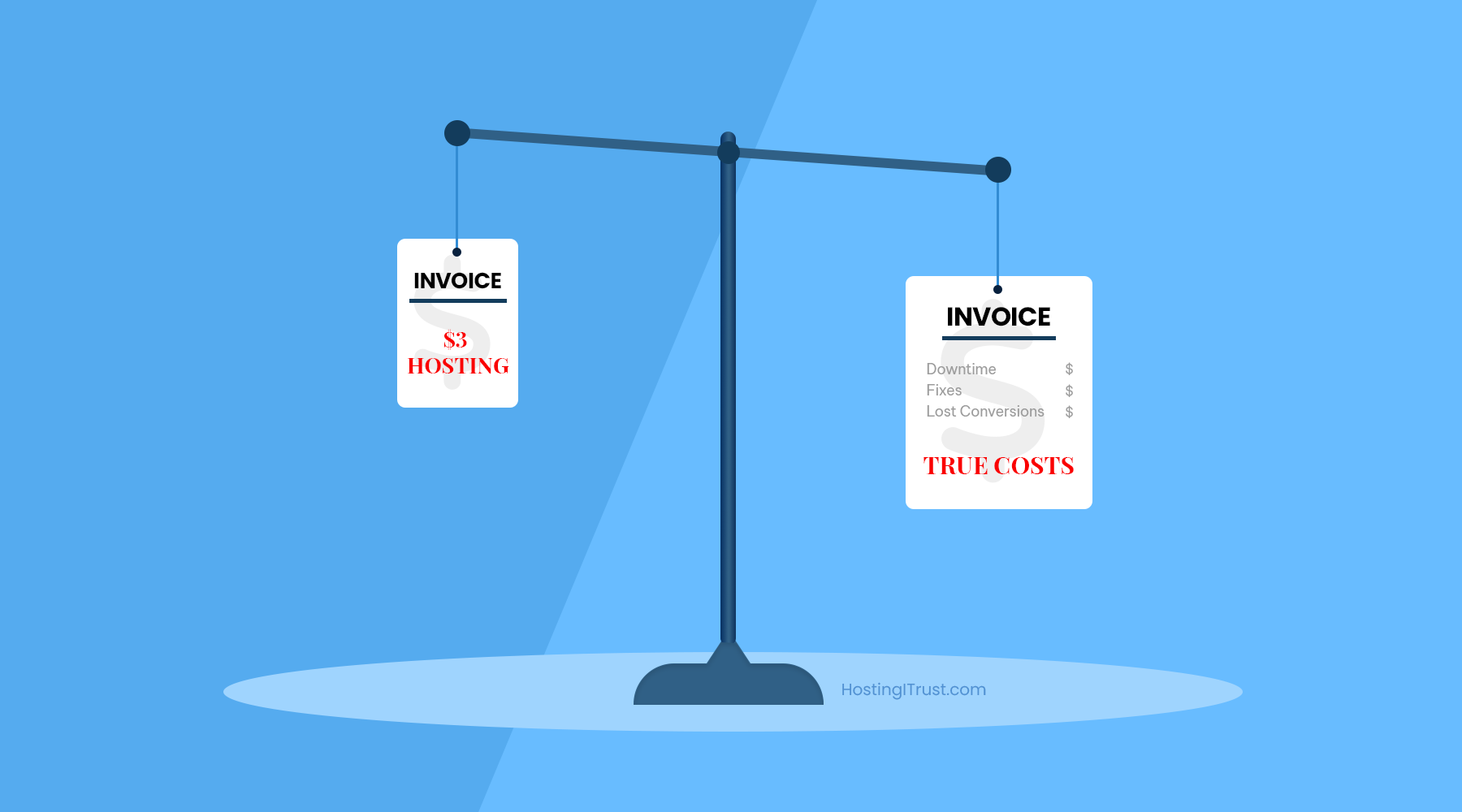
The same work that costs a little in a planned routine becomes expensive in emergency conditions: urgent developer time, incident response, restore work, and lost hours.
4) Real compliance risks
If you collect customer details (even simple contact forms), a compromise can become a privacy liability. For eCommerce or membership sites, the stakes rise quickly.
If your site contributes to revenue, you don’t want security to be “best effort.” You want it to be systematic.
“But updates might break my site.” True—so update the right way.
This fear is valid. Plugins can conflict. Themes can behave differently after changes. But the conclusion shouldn’t be “don’t update.”
The better conclusion is: update with a process that makes failure safe.
A professional update workflow typically includes:
- A recent backup (that you know you can restore)
- A staging environment to test changes
- A predictable schedule for routine updates
- A way to rollback quickly if something breaks
- Monitoring and logs that tell you what happened
So the real choice isn’t “update vs don’t update.”
It’s “update safely vs update dangerously (or never).”
The 2026 WordPress update policy that actually works
If you want a simple rule set you can apply consistently, use this:
Update immediately (same day) if:
- It’s labeled security (or fixes “vulnerability” / “exploit”)
- The plugin is widely used or critical to your site (forms, SEO, cache, WooCommerce)
- You see unusual behavior: redirects, admin users you didn’t create, new pages/posts, strange files
Update within 7 days if:
- It’s a feature update for a critical plugin
- It includes bug fixes that affect stability or performance
- It’s a minor core update (especially if you’re behind)
Update monthly if:
- It’s routine improvements or non-critical enhancements
- Your site is stable and you don’t need features immediately
This maintenance schedule keeps you protected without turning your business into a QA lab.
The practical maintenance rhythm (balanced, realistic)
Instead of trying to do everything “whenever you remember,” build a rhythm. Here’s a manageable approach for most business sites.
Weekly (15–30 minutes)
Check that backups are current, scan for obvious security alerts, and confirm key site functions work. A quick loop is often enough to catch early warning signs.
A short weekly list:
- Confirm your latest backup exists (files + database)
- Review failed login attempts (or security plugin logs)
- Submit a test form (and confirm the email arrived)
- Check for any new admin users or unfamiliar plugins
Monthly (60–120 minutes)
This is where most update work happens—unless something urgent appears.
- Apply core/plugin/theme updates in staging first
- Test the critical flow: homepage → key pages → forms/checkout
- Push updates live during low-traffic hours
- Clear caches and re-test
- Review user accounts and remove old access
Quarterly (optional but smart)
Quarterly is where you do the “bigger hygiene” that prevents future mess.
- Remove plugins you no longer use
- Replace abandoned plugins
- Review PHP version compatibility and plan upgrades
- Tighten security settings and file permissions
- Run a deeper scan and investigate anything unusual
This is how security stops being stressful and becomes routine.
The “big four” security habits that make updates more effective
Updates matter most when they’re part of a wider security posture. If you do only one thing, do updates. But if you do four things, your risk drops dramatically.
1) Use least privilege (and remove old users)
Many compromises start with overpowered accounts. Keep admin access tight, and remove old contractors.
2) Enforce strong login security
At minimum: strong passwords + limit login attempts. Ideally: 2FA for admins.
3) Reduce your plugin surface area
Every plugin is another dependency. Keep only what you need, and avoid “utility clutter” plugins that overlap.
4) Monitor and respond quickly
A good system doesn’t just prevent issues—it detects them early. Even simple uptime alerts plus security scans are far better than “we’ll notice if something breaks.”
Special note for WooCommerce sites
WooCommerce sites should treat security as a revenue function, not a technical chore. A hacked store can lose customer trust overnight.
For WooCommerce, add these habits:
- Update WooCommerce and payment integrations with extra care (staging tests first)
- Avoid caching cart/checkout/account pages
- Watch for unexpected product/page creation (a common spam pattern)
- Maintain backups with quick restore capability
- Monitor transaction flow after updates (even one failed checkout day hurts)
DIY vs Managed: what changes when you’re on a managed stack?
You can do this yourself. Many businesses do. But the real issue is consistency—updates need to happen even when you’re busy, traveling, or focused on client work.
A managed service exists because it removes the human bottleneck.
What you typically still do (as a site owner)
You approve large changes, you choose new features, and you decide when bigger redesigns happen. You also stay informed about what’s changing.
What a good managed host handles
They take responsibility for the repetitive, high-risk work:
- Core/plugin/theme updates with rollback planning
- Backups (daily/off-site) + restore capability
- Malware scanning and cleanup if needed
- WAF and brute-force protection
- Uptime monitoring and error alerting
- Security hardening and access hygiene guidance
At HostingITrust, the goal is simple: your site stays stable and protected while you focus on business.
A simple “security update” checklist you can copy into your SOP
If you want one compact sequence to follow each update cycle, use this:
- Backup first (and confirm it exists)
- Update in staging (not production)
- Test essentials:
- Homepage load
- Top landing pages
- Contact form
- Login
- Checkout (if applicable)
- Push to production during low traffic
- Purge cache/CDN
- Re-test essentials again
- Monitor logs for 24 hours (errors, 404 spikes, unusual activity)
This process makes updates feel “boring,” and boring is exactly what you want in security.
Common myths that keep sites vulnerable
“My site is too small to get hacked.”
Bots don’t care. Small sites are often easier targets.
“I have a security plugin, so I’m safe.”
Security plugins help, but they don’t replace patching vulnerabilities. Updates close known doors.
“I’ll update when I redesign later.”
This is like postponing lock repairs because you plan to repaint. Different job. Different risk.
“I’ll only update WordPress core.”
Plugins and PHP are often the bigger risk. Updates must cover the whole stack.
Conclusion: In 2026, updates are not optional
The internet doesn’t wait for you to have free time. Vulnerabilities get discovered, shared, and exploited quickly. The safest WordPress sites in 2026 are not the ones with the fanciest themes—they’re the ones that get maintained consistently, updated responsibly, and monitored like real infrastructure.
If you want the outcome without the routine, that’s exactly what fully managed hosting is designed for.
Next step: If you’d like, we can review your current update posture (core/plugins/PHP), identify risk points, and set up a calm monthly routine—or manage it completely for you.
FAQ
How often should I update WordPress in 2026?
Security updates should be applied quickly (same day when possible). Routine updates can be monthly, but critical plugins should not be left behind.
Can updates break my site?
Yes—especially major plugin releases. That’s why staging + backups + rollback planning are essential.
Do I need to update PHP too?
Yes. Old PHP versions can carry security and performance risks and may stop receiving support.
What’s the biggest WordPress security risk?
Outdated or abandoned plugins, weak credentials, and inconsistent updates are common root causes.
Is managed WordPress hosting worth it?
If your site generates leads or revenue, managed hosting often costs less than one security incident—while improving speed and stability at the same time.